Search
You can perform searches in Hyperview from three different places: Quick Search, Advanced Search, and within specific grids. Regardless of where you are searching from, search results will only reflect assets that you have access to.
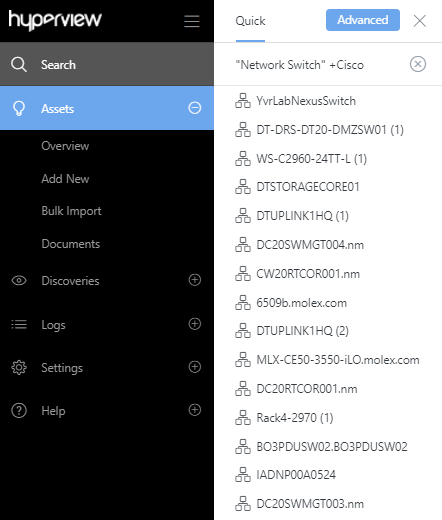
Quick Search and Advanced Search are both opened from the Search box in the top bar (or by pressing Ctrl+K). The search palette has three tabs:
Quick — fast, type-as-you-go asset lookup.
Advanced — filter-based querying with a results grid.
AI Assistant — ask questions in natural language. Refer to AI Assistant for details.
Quick Search and Advanced Search
Quick Search lets you quickly lookup assets from the Quick tab of the search palette. Search results appear as soon as you type a matching character string. Clicking on a search result opens the corresponding asset Dashboard.
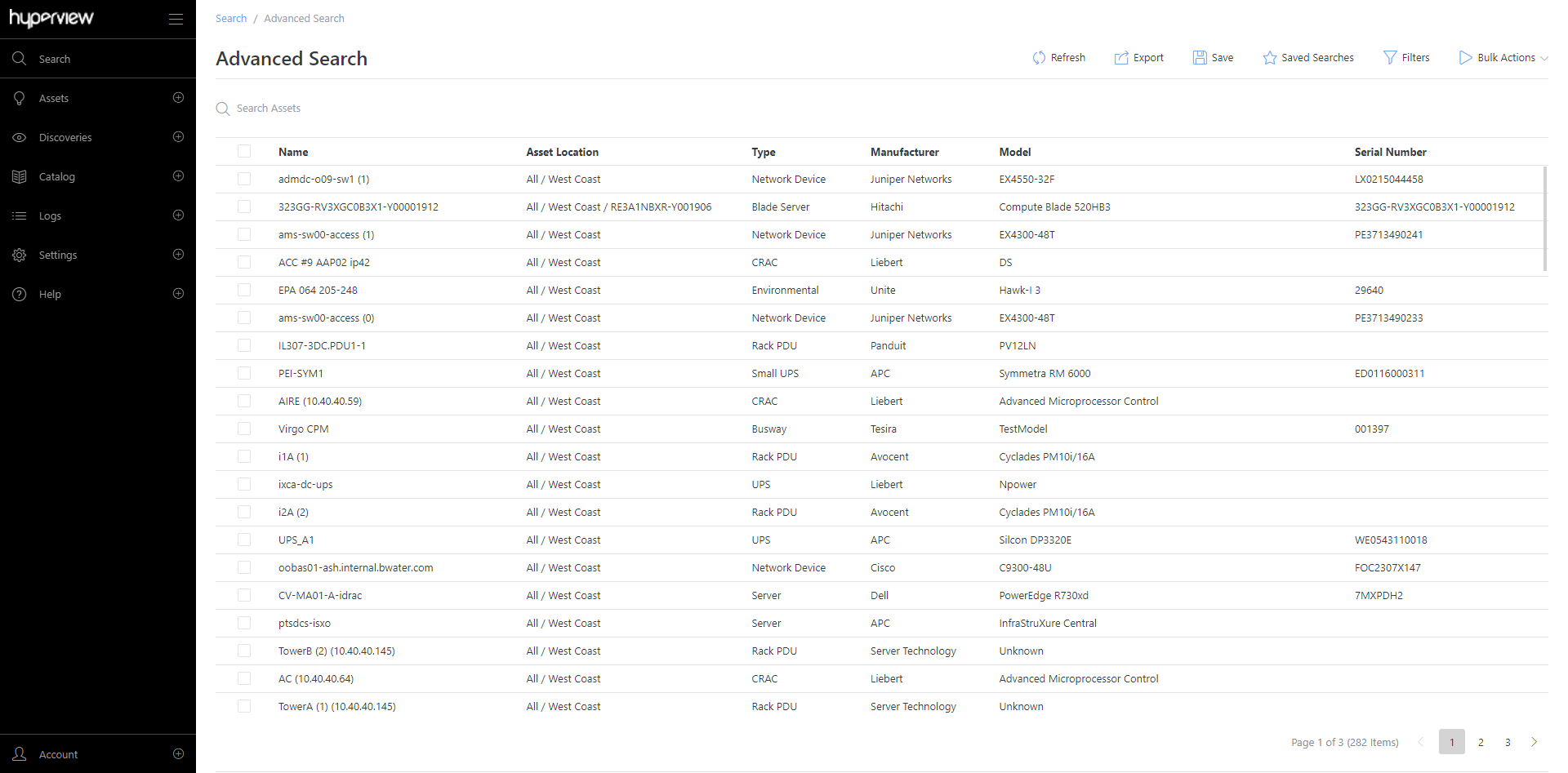
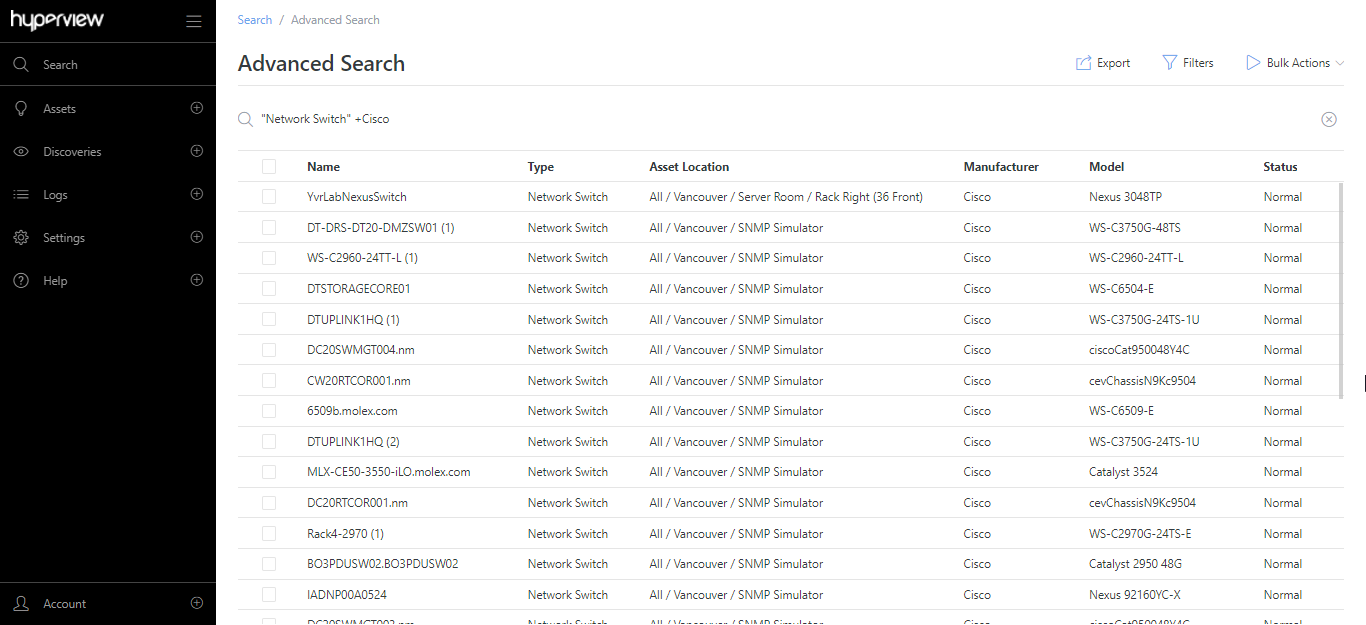
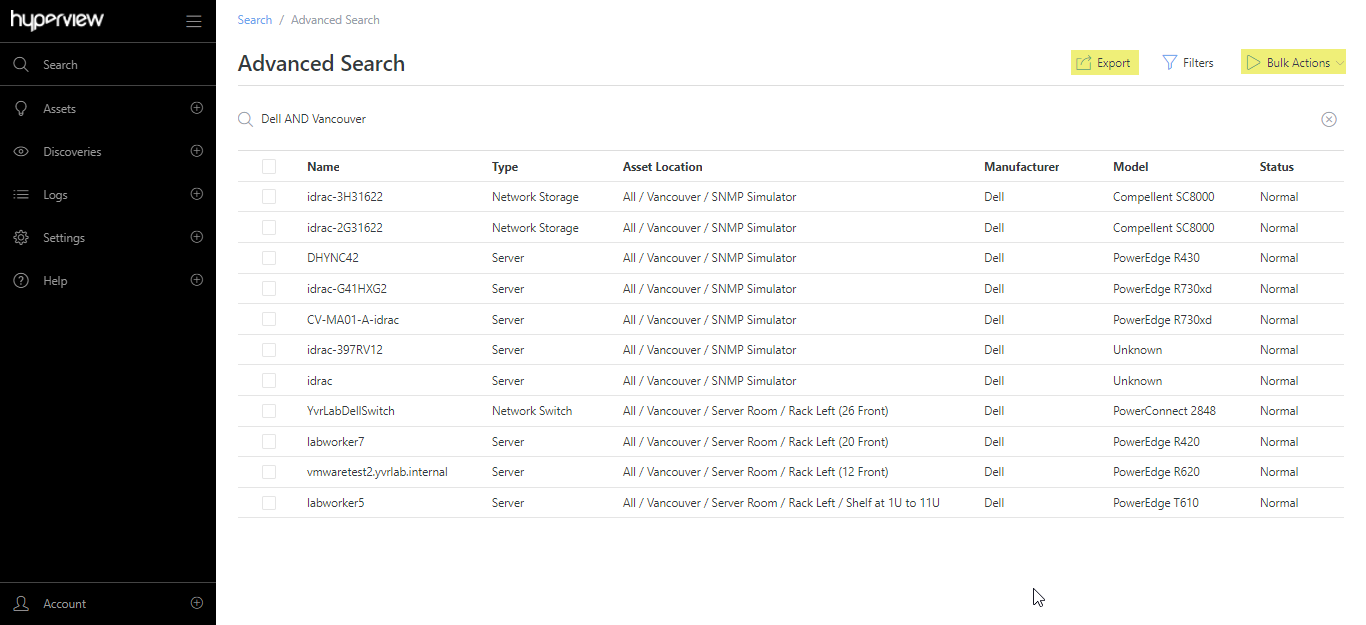
The Advanced Search page is also accessible from the Advanced tab of the search palette. Search results appear in a grid, allowing users to perform relevant actions such as Export and Bulk Delete. Double-clicking a matching asset opens its Dashboard.
Advanced Search has two tabs:
Assets — search for assets. Each result is an asset. This is the default tab, and is described throughout this section.
Sensors — search for individual sensors across all asset types, and manage them in bulk. Each result is a sensor. The Sensors tab has its own search box, filters, columns, saved searches, Export, and Bulk Actions. Refer to Sensor Search for details.
Note
This section covers features that are common to both Quick Search and Advanced Search. Advanced Search-only features (such as filters) are described later on this page.
Searchable fields
Virtually all asset and asset-related fields in Hyperview are searchable, including asset properties, custom properties, and sensors. However, matches for the Name field appear first in search results. Note that there may be a slight delay before search results reflect new assets, asset updates, and access policy changes.
For example, if you search for critical, all assets with a Critical status — as well as assets that have the word “Critical” as part of an asset tag, custom property, access policy, or another field — will populate search results.
Double quotes
You can use double quotes to enforce exact matches for a word or phrase. For example, to only find assets that specifically mention Rack E-1, search "Rack E-1".
All search words and phrases are considered to be case insensitive. For example, "Server 11" will match on both “server 11” and “Server 11”.
Finding dates and numbers
You can search for date values in YYYY-MM-DD format. For instance, to find asset records mentioning 9/1/2021, search 2021-09-01. You can refine your query by specifying additional terms or phrases you are interested in, such as 2021-09-01 HP.
You can also search for asset records that mention a specific integer or floating point number. For example, searching for 325 will only return records that
mention 325; you do not need to enclose the number with double quotes. Similarly, searching for 325.25 will only return records that mention 325.25.
Note
We recommend using filters to filter by property, custom property, and sensor values. Refer to the “Advanced Search-only features” section below.
The NOT operator
- is the NOT operator.
server -HPwill only return records matching “server” that do not include “HP”.
Advanced Search-only features
Apart from the features described in the previous section, Advanced Search lets you apply filters, add or remove grid columns, save searches, and perform generic grid operations such as exporting records. The filters, columns, and saved searches described below apply to the Assets tab (asset search); the Sensors tab provides its own equivalents, described in Sensor Search.
Note
A single Advanced Search query can return a maximum of 10,000 rows.
Using filters
A “filter” is a condition or set of conditions in Advanced Search that will limit returned assets to only those assets that pass the condition(s). You can add filters from the Filters panel for more focused queries, such as finding asset records matching a specific sensor value.
Note
Filters are more structured and efficient compared to manual queries; we recommend using them whenever possible. You can combine as many filters as needed. However, note that filters are AND-ed — in other words, if you have multiple conditions applied in the same search, then the results must match every single condition (conjunctive/AND) and not just one (disjunctive/OR).
Available filters
The following filters are available.
Dropdown filters (selected directly in the Filters panel):
Type (you can select multiple asset types at once)
Location
Manufacturer
Model
Status
Lifecycle State
Discovery State
Business Entity
Access Policy
Property and sensor filters (added from the Property and Sensor Filters section — see “Adding filters” below):
Asset Property
Custom Property (Asset)
Custom Property (Business Entity)
Sensor
Note that the default Location is All.
Adding filters
Click Filters on the Advanced Search page (or the View Filters link upon opening the page). The Filters panel will open.
Select Location, Type, Manufacturer, Model, Status, Lifecycle State, Discovery State, Business Entity, and Access Policy values as needed.
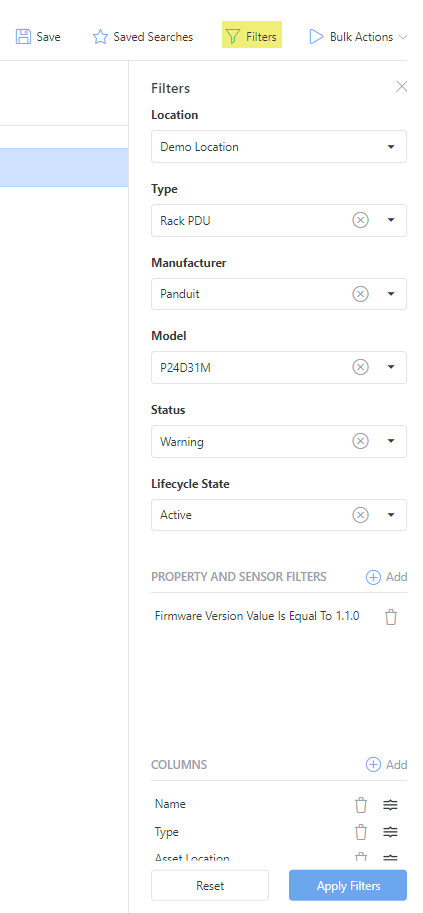
Add asset property, custom property, and sensor filters as needed:
Note
Availability of filter values will depend on existing data. For example, if there are no custom properties of date type defined on your system, the corresponding dropdown will be empty.
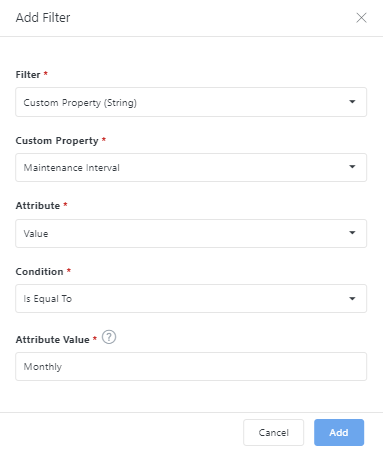
Click the Add button for Property and Sensor Filters. The Add Filter modal will appear.
Select the intended property, custom property, or sensor filter type.
Relevant fields will appear. Provide values as required.
Click Add. The filter will appear under Property and Sensor Filters in the panel.
Add, remove, or rearrange grid columns as needed (described below).
Click Apply Filters. Matching records will appear in the grid.
Adding or removing grid columns
You can specify which columns to surface on the Advanced Search grid. By default the following column are shown: Name, Type, Asset Location, Manufacturer, Model, Status, and Lifecycle State.
To add or remove columns:
Open the Filters panel.
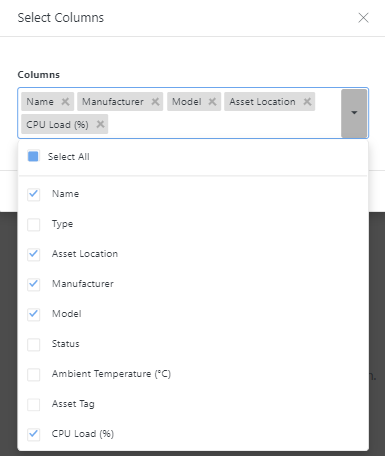
Click the Add button in the Columns area. The Select Columns modal will appear.
Click the dropdown arrow to see a list of available columns.
Select columns that you want to add, and de-select ones that you want to remove from the grid.
Click Add → Apply Filters. The page will refresh to reflect your changes.
Additionally, you can remove a column by clicking the corresponding trash icon → Apply Filters. Note that you must have at least one column showing in the grid.
To move a column to a different position in the grid, hover your cursor over the wiggly icon in the Columns area → drag up or down → Apply Filters.
Using saved searches
The Advanced Search page lets you save searches to be re-run later. There are two related buttons on the page:
Save (lets you save a search)
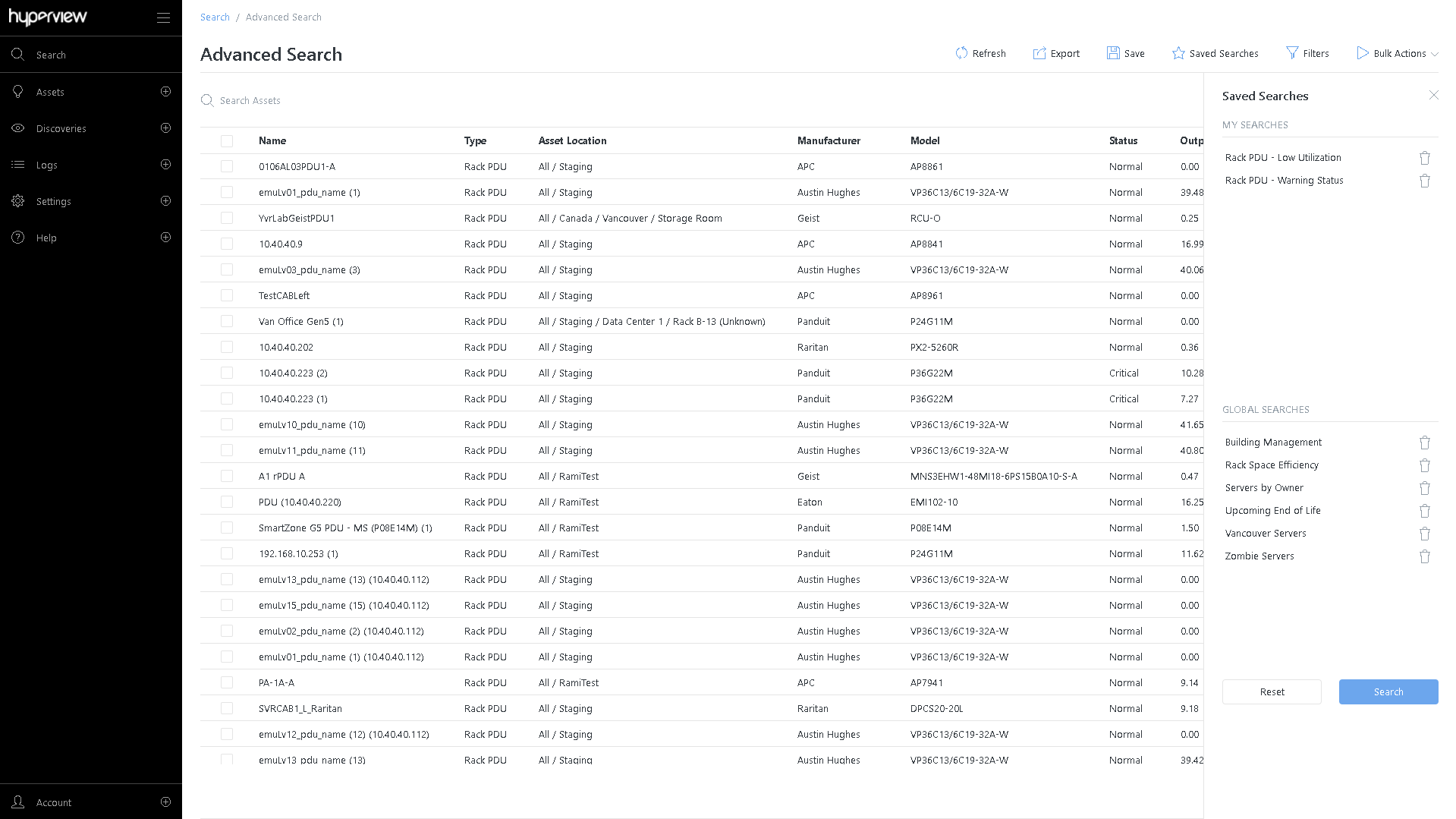
Saved Searches (opens the Saved Searches panel, which lists existing saved searches).
Any user can perform an Advanced Search by applying filters, writing a manual query, or both, and then save it. Personal saved searches appear under My Searches in the Search panel. They are only available to the user who created them. Administrators can save and manage global searches, which are available to all users and appear under Global Searches in the Saved Searches panel.
Saving a search
Perform an Advanced Search.
Click Save. The Save Advanced Search modal will appear.
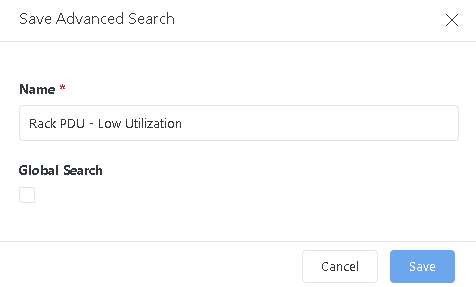
Enter a Name for the saved search.
(Admin only) Select the Global Search checkbox if you want this saved search to be available to all other users.
Click Save. A success message will appear.
The saved search will be listed in the Saved Searches panel under My Searches or Global Searches, as appropriate.
Applying a saved search
Select a saved search from My Searches or Global Searches in the Saved Searches panel.
Click Search.
The saved search will be applied, and matching records will appear in the Advanced Search grid.
Tip
Selecting a saved search populates the Filters panel and/or the Search Assets row in the Advanced Search grid with saved values. You can modify these values and add further conditions or filters to alter your search on the fly.
Generic grid operations
Like most grids in Hyperview, you can export Advanced Search results as a spreadsheet. This can be incredibly useful when you are producing reports or asset inventory records.
You can also perform bulk actions against Advanced Search results. For example, you can bulk delete one or more assets matching your query.
Sensor Search
While Asset Search returns assets, Sensor Search returns individual sensors. Switch to the Sensors tab of Advanced Search to find specific sensor readings, audit sensors of a given type, or manage sensors in bulk — across all asset types, regardless of which assets they belong to.
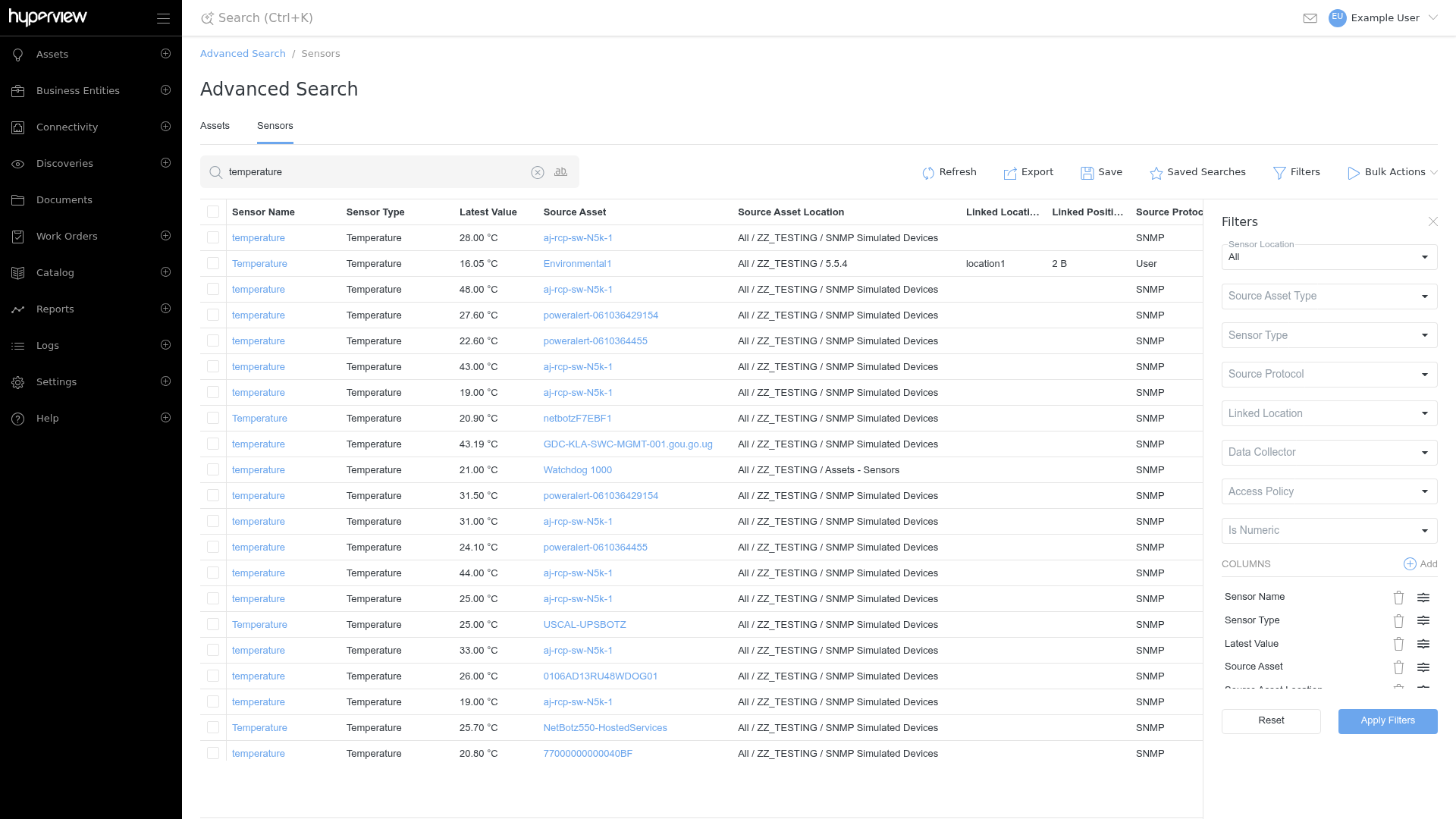
Sensor Search works like Asset Search, with a few key differences:
Each row in the results grid is a sensor, not an asset. The Source Asset column links back to the asset that owns the sensor.
The Sensors tab has its own search box, filters, columns, saved searches, Export, and Bulk Actions, all independent from the Assets tab.
You search and filter by sensor attributes (such as Sensor Type and Source Protocol) rather than asset attributes.
The searchable-fields behavior, double quotes, number and date matching, and the NOT operator described earlier all apply to the Sensors search box as well.
Sensor filters
Click Filters to open the Filters panel, then narrow results using the following dropdown filters:
Sensor Location (default is All)
Source Asset Type
Sensor Type
Source Protocol
Linked Location
Data Collector
Access Policy
Is Numeric
As with asset filters, sensor filters are AND-ed — results must match every condition you apply. Click Apply Filters to run the search, or Reset to clear the filters.
Sensor columns
By default, the grid shows these columns: Sensor Name, Sensor Type, Latest Value, Source Asset, Source Asset Location, Linked Location, Linked Position, Source Protocol, Data Collector, and Last Updated.
Click Add in the Columns area of the Filters panel to add or remove columns. Additional available columns include Sensor ID, List Index, Source Asset ID, Access Policy, Is Numeric, Raw Value, and OID.
Tip
For SNMP-based sensors, add the OID column to help verify and troubleshoot sensor readings.
Sensor bulk actions
Select one or more sensors using the row checkboxes, then click Bulk Actions to:
Update Access Policy — set the access policy on the selected sensors.
Reset Access Policy — reset the selected sensors to follow the access policy of their parent asset.
Delete — delete the selected sensors.
You can also export sensor results as a spreadsheet and save sensor searches, just as you can on the Assets tab.
Searching in specific grids
The Advanced Search grid is intended for querying records. However, any grid in Hyperview is searchable. For performance and usability reasons, grid-specific searchability is typically restricted to a few columns and varies on a table-by-table basis.
For example:
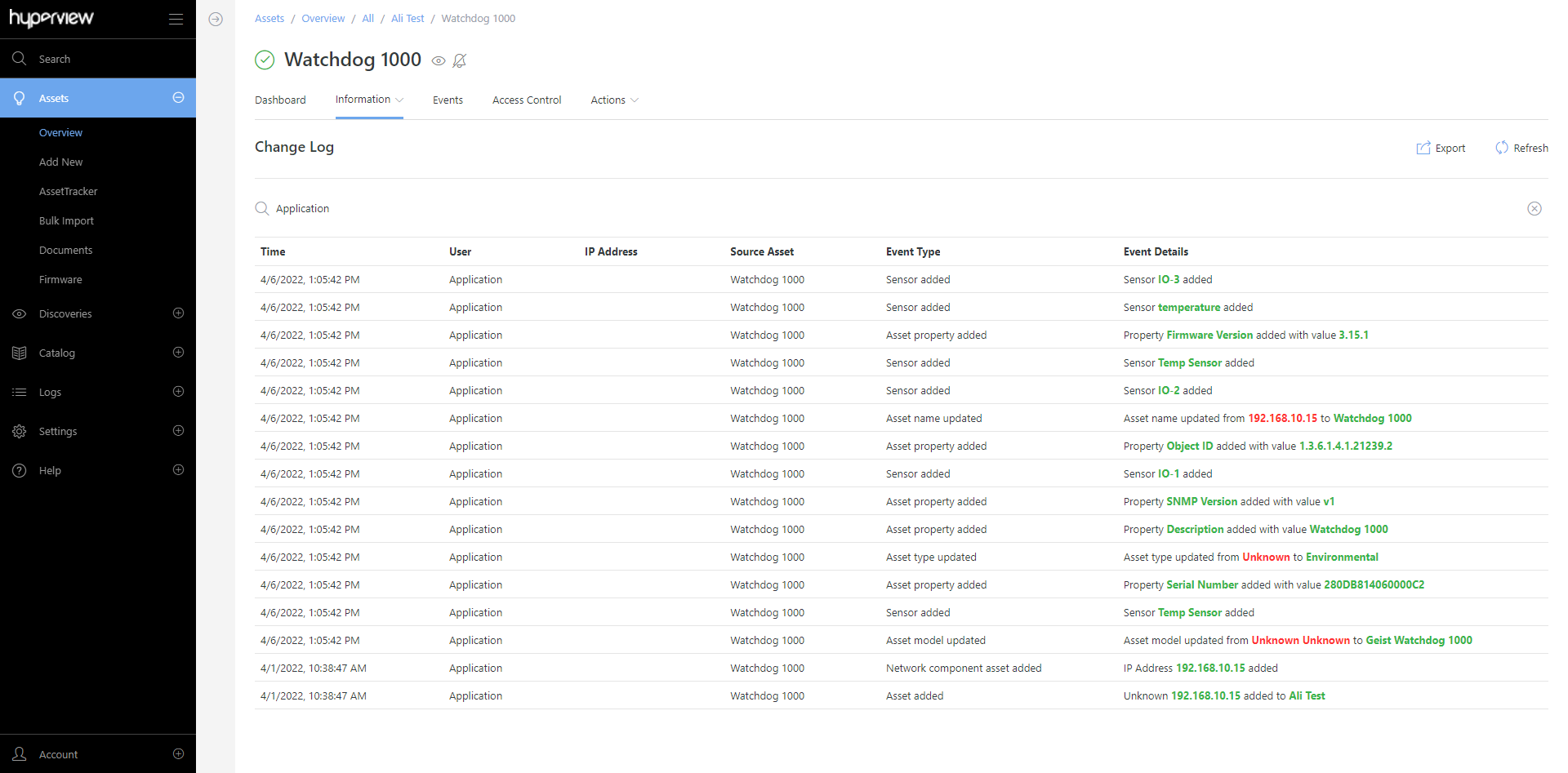
You can search for an asset’s Change Log entries (Information → Change Log) by User.
You can search Assets By Type grids (Types → any asset type) by Name, Data Center, Location, Manufacturer or Model.
Opening a grid in Advanced Search
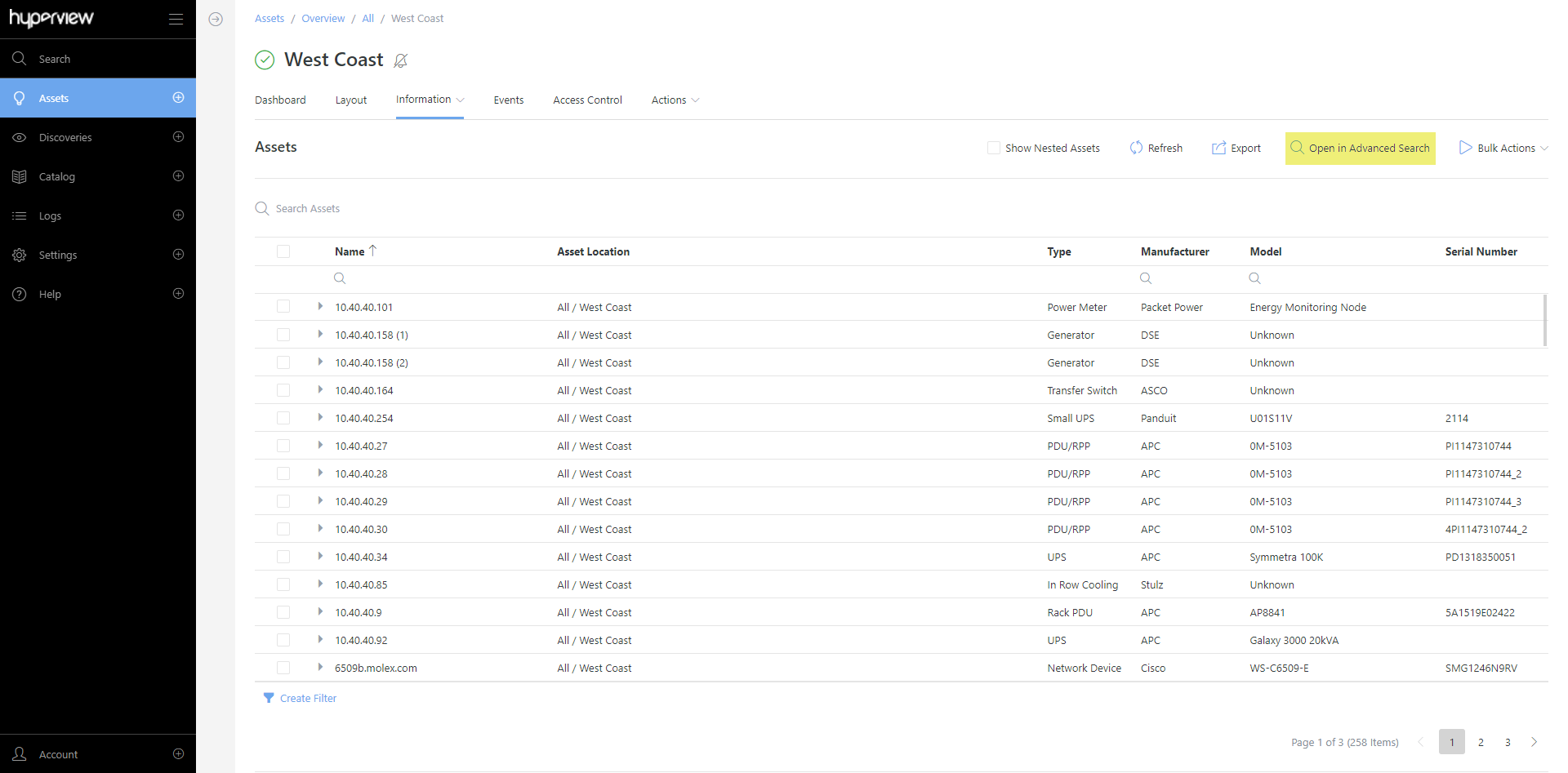
For certain kinds of pages, you can open your current grid in Advanced Search by clicking the Open in Advanced Search button. This allows you to leverage Advanced Search features to query your current context.
Supported pages are:
Assets By Type pages (for example, Types → Rack → Open in Advanced Search opens the Rack Assets By Type page in Advanced Search)
Assets By Location pages (for example, browse to a location → Information → Assets → Open in Advanced Search opens the location’s Assets grid in Advanced Search)