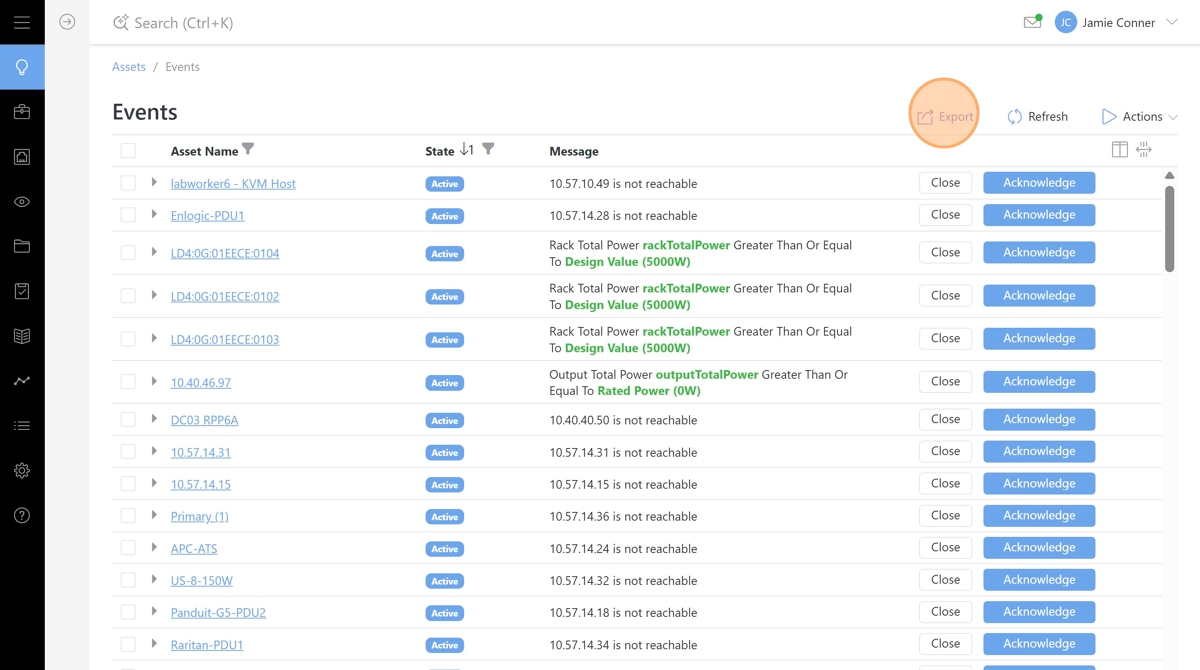
Global Events Page
Manage global events within Hyperview, enabling users to efficiently acknowledge, close, and export any event data. Users can easily navigate the Global Events page, access detailed event information, and utilize bulk actions for streamlined event management. Additionally, the ability to export event data as an Excel document enhances reporting and analysis capabilities.
The Global Events page is accessed under the Assets section of the main menu. This page lists all events that have occurred for the environment within Hyperview.
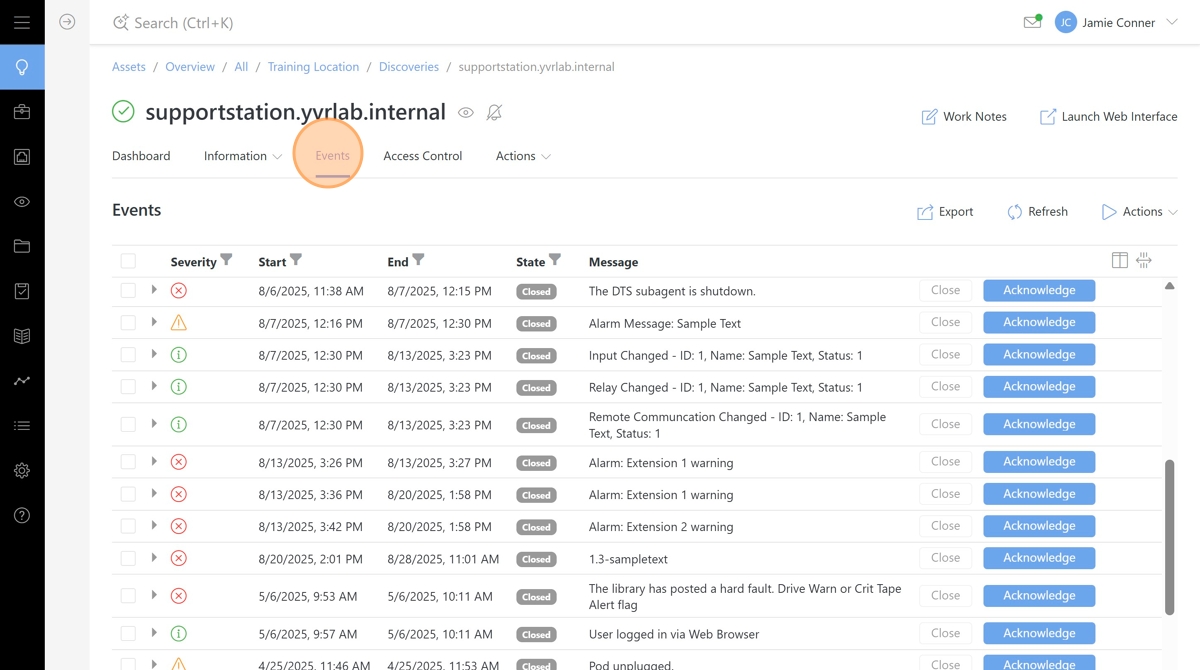
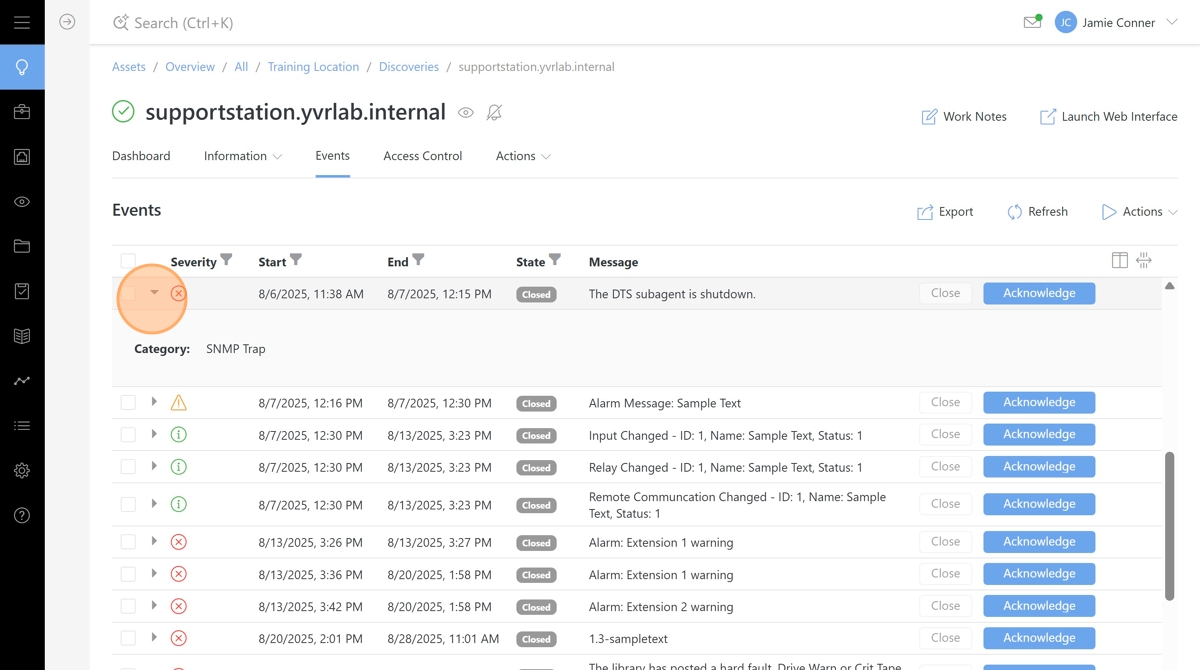
Expand additional event information by clicking the arrow icon for that event. Event information includes the Asset Name, State, Event Message, Severity, Location, Start and End Time, Event Category, and Acknowledged state.
Clicking the Acknowledge button will set the event to the acknowledged state. The event will display an acknowledgment state and an acknowledgment user. Acknowledging an event does not change its Active or Closed status.
Clicking the Close button will change the event state from Active to Closed. This may be useful if alarm states cannot be automatically closed by assets.
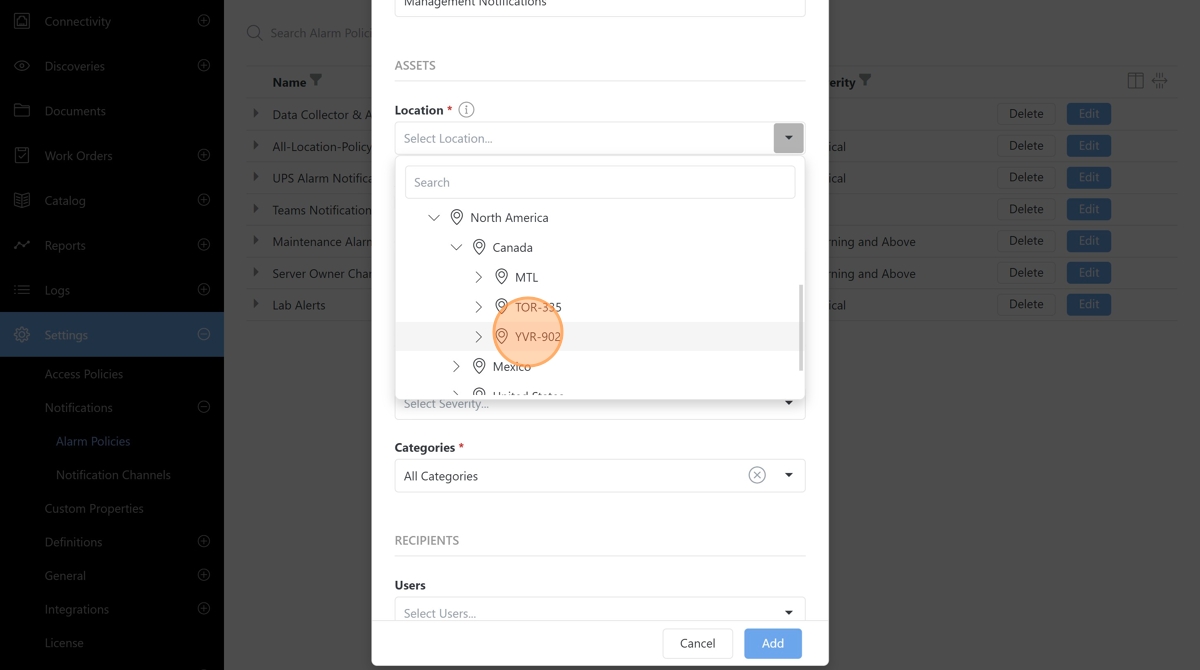
Closing an event requires confirmation.
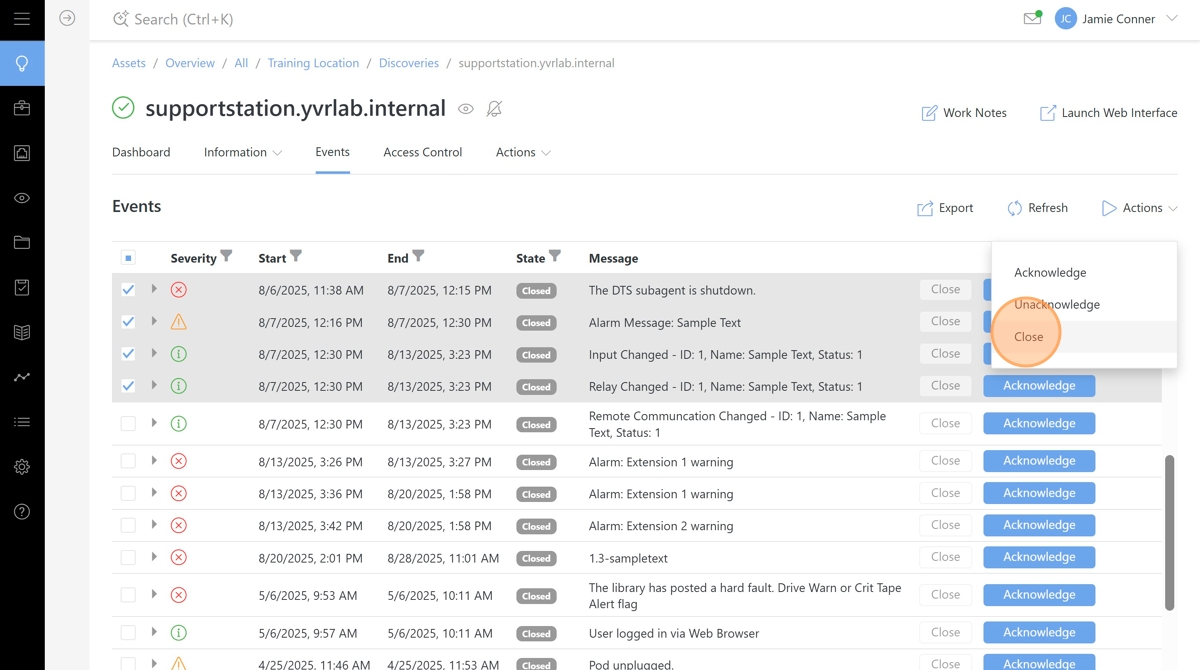
Bulk Actions are available from the Global Events page. Select multiple events to take action on and open the Bulk Actions menu to Acknowledge, Unacknowledge, or Close events.
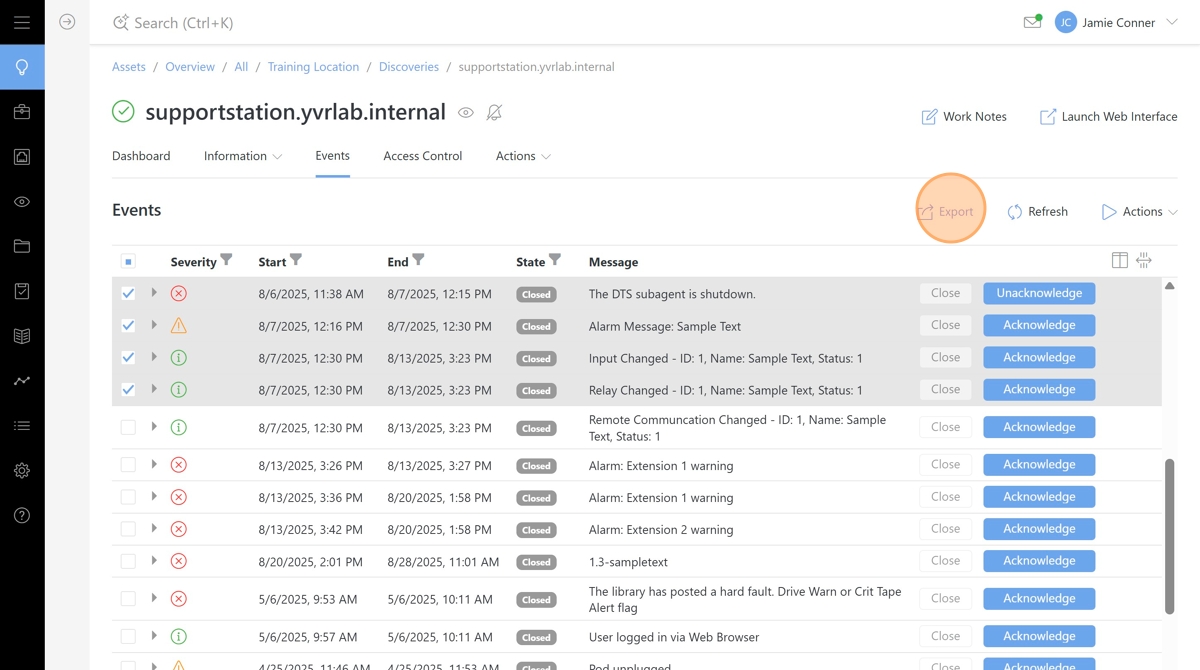
The Global Events page can be saved to a file by clicking the Export button. This will download the full list of alarm events as an Excel document.