Sensor Threshold Management
Manage sensor thresholds effectively in Hyperview, allowing users to customize alerts by asset and sensor type. Enable or disable default thresholds, add new ones, and configure alarm severity and comparison conditions. Optimize the monitoring systems and enhance responsiveness to critical changes in sensor data.
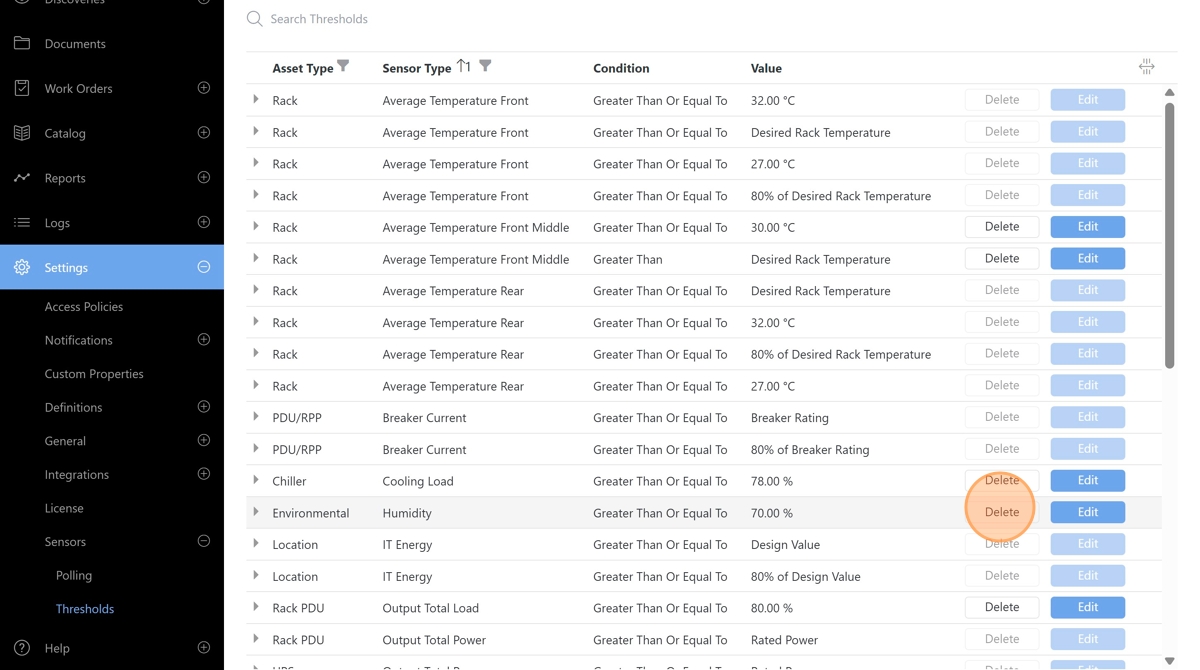
Open the Sensor Thresholds configuration page from the Settings -> Sensors -> Thresholds menu option.
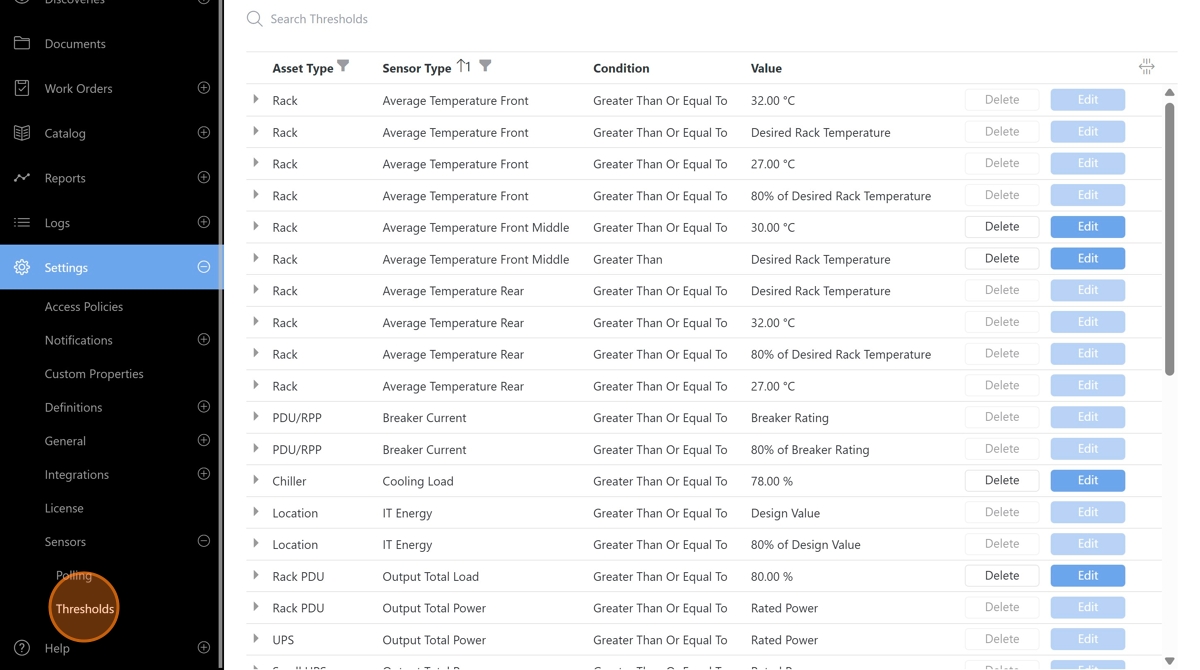
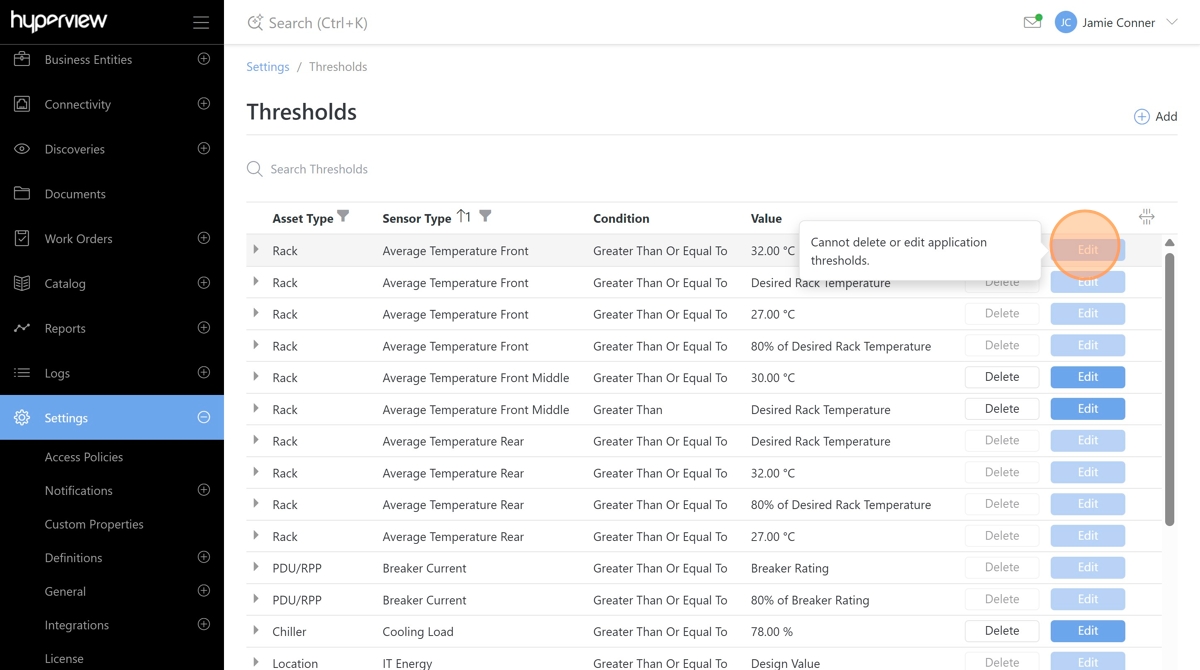
Hyperview has many default thresholds already configured. Users may not edit or delete these thresholds.
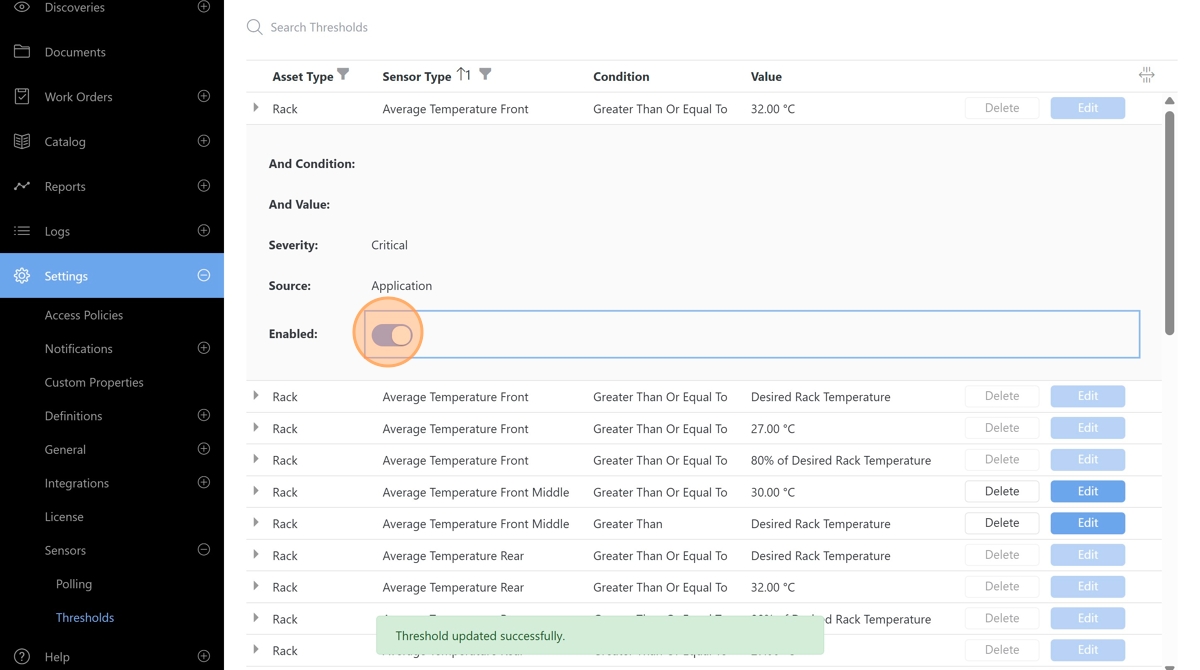
Default thresholds can be turned on or off by toggling the Enabled setting for the threshold.
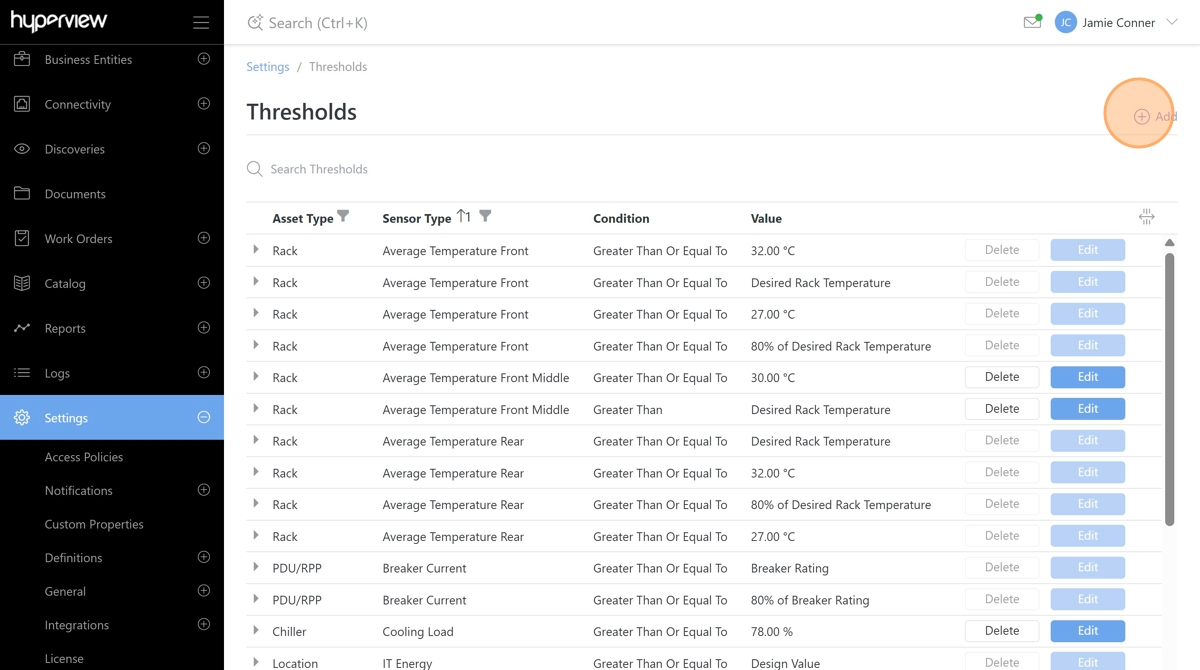
Start adding a new Sensor Threshold by clicking the Add button.
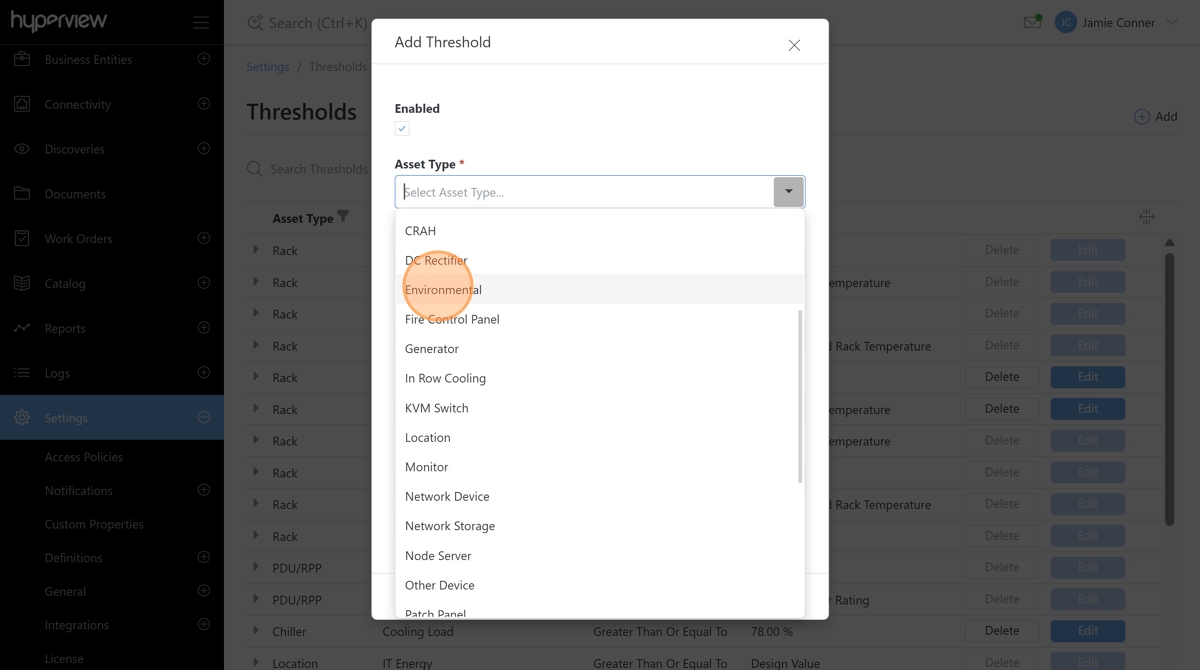
Choose an asset type to configure the threshold for. All supported asset types are available in this list.
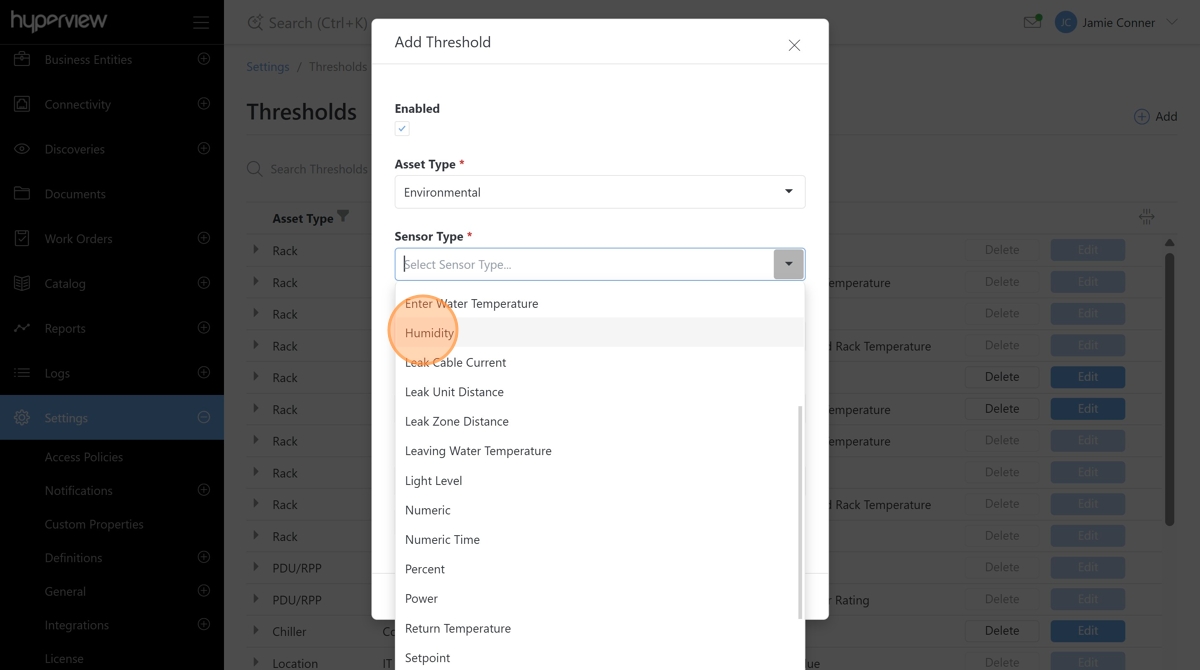
Choose a sensor type to configure the threshold for. This list of sensor types is limited by the selected asset type.
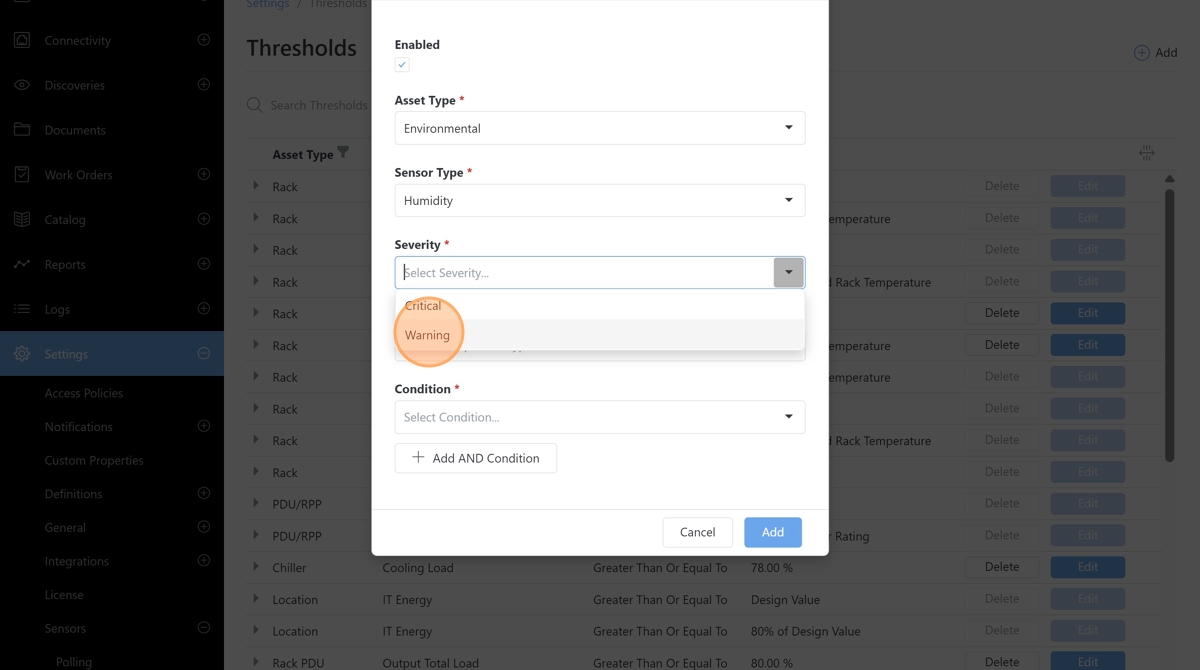
Define the severity of the alarm that should be escalated to the asset when the threshold is met.
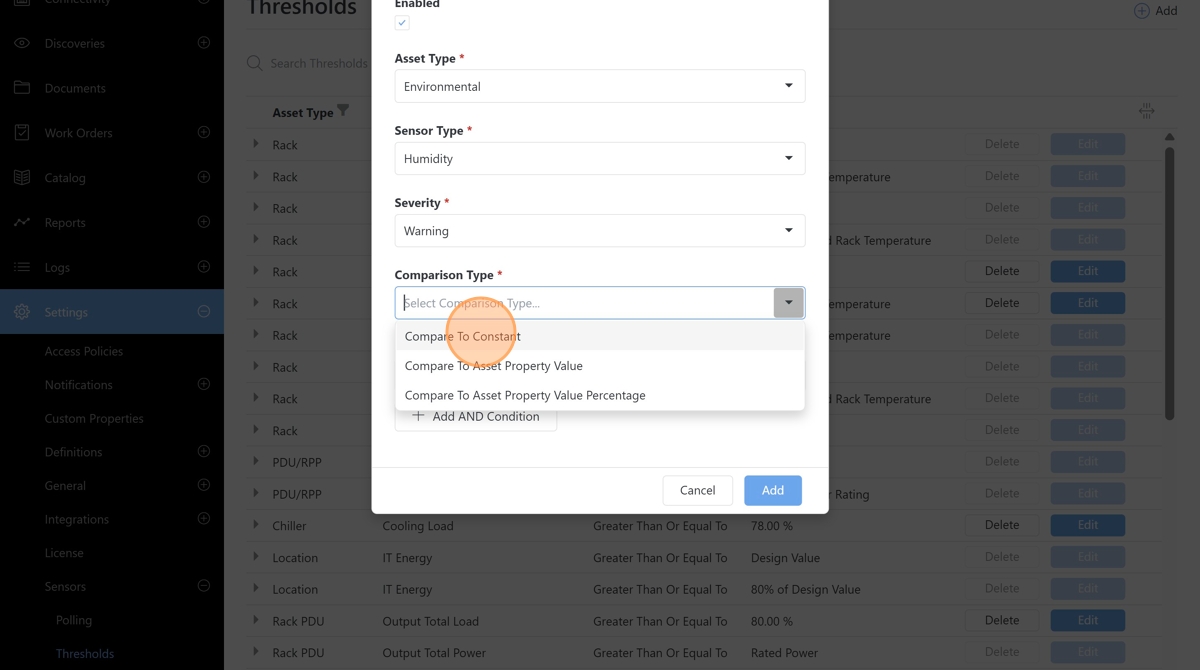
Select a comparison type. This allows the sensor value of the chosen type to be compared to either a constant static value or a property from the asset.
Note
Some sensor types do not have asset property comparison options, as there are no related asset properties to compare the value against.
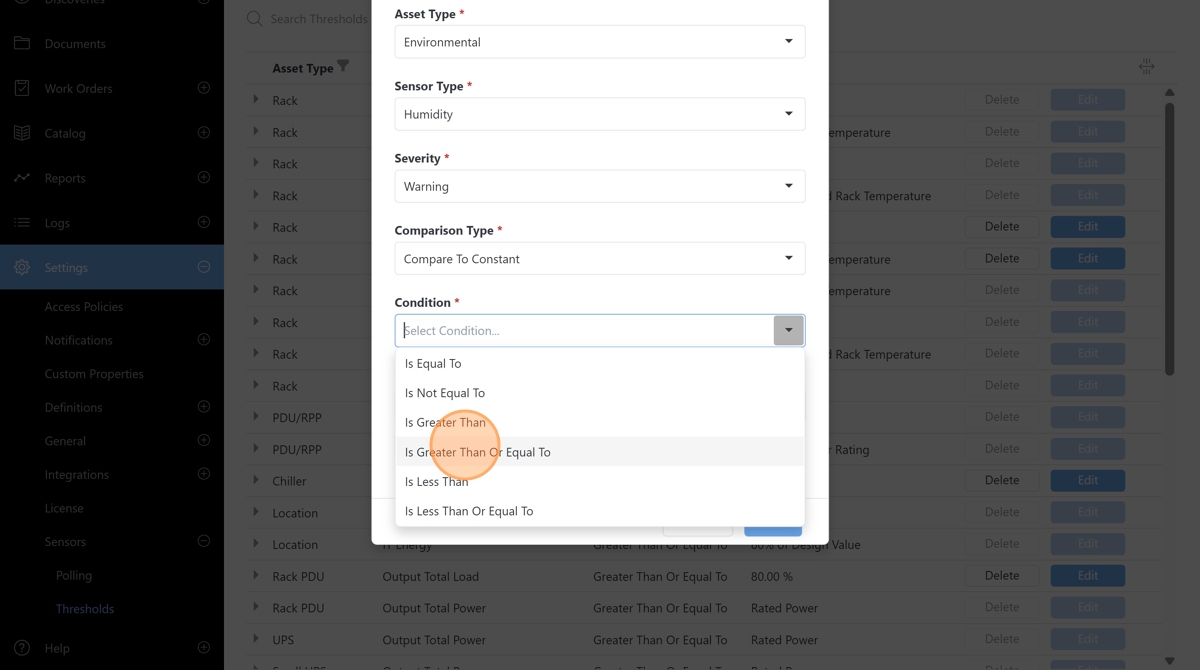
Set the condition for the comparison. This is typically defined as the upper or lower threshold.
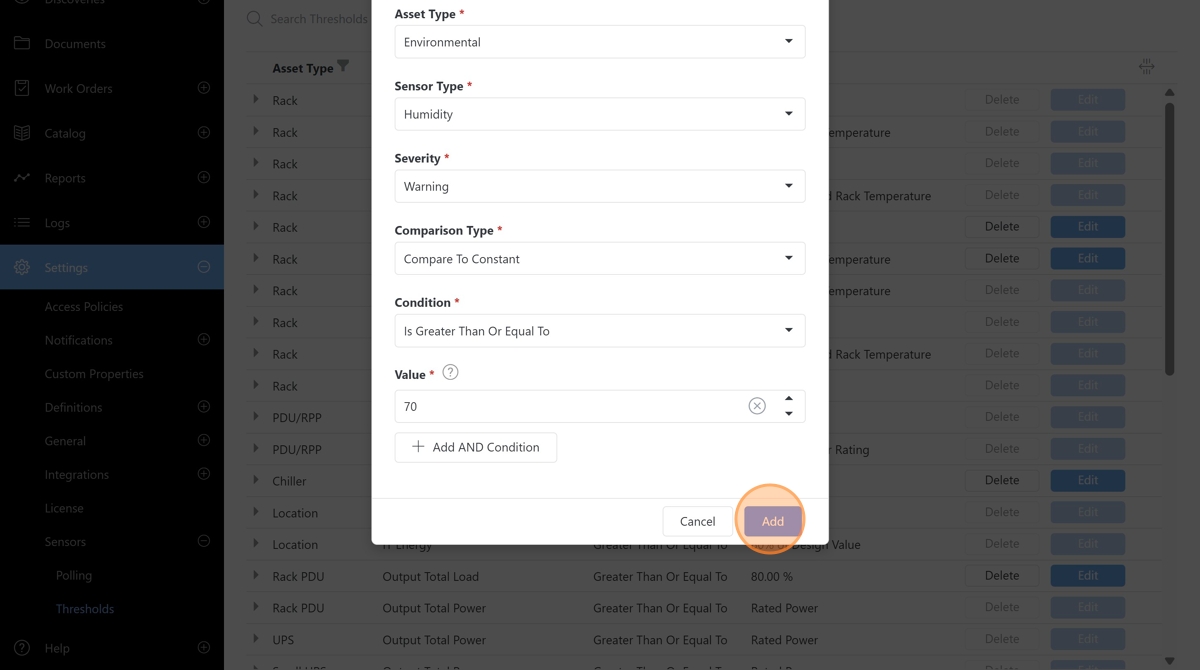
Set a comparison value or select the comparison property and click Add to finish configuring a sensor threshold.
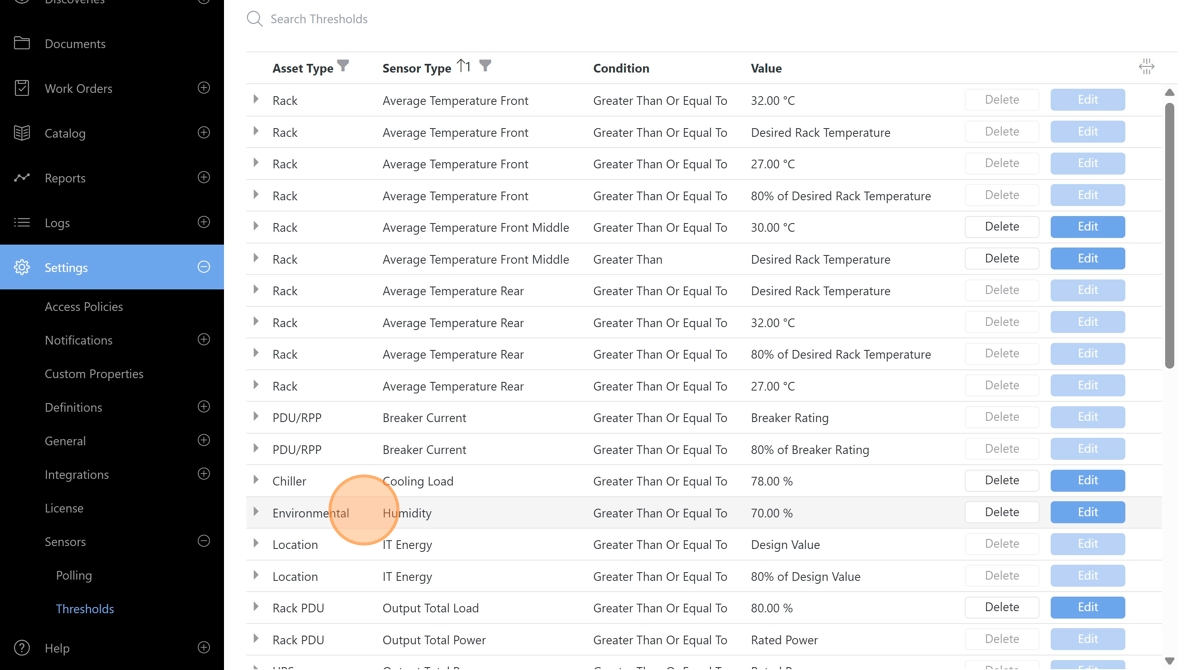
The new threshold will appear in the sensor thresholds list.
Any user-defined sensor threshold options can be reconfigured by clicking the Edit button.
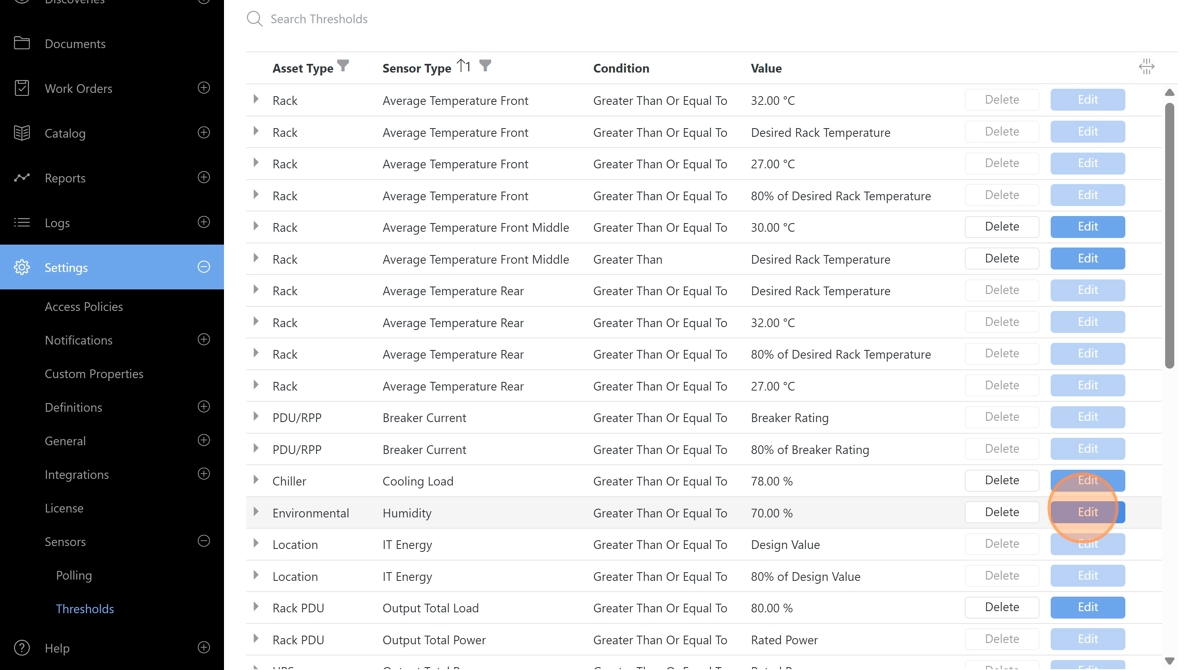
User-defined sensor thresholds can also be removed by clicking the Delete button.