Administering Alarm Policy Notifications
Manage alarm policy notifications to ensure the right users receive timely alerts. Allows for tailored notifications based on asset types, severity, and user groups.
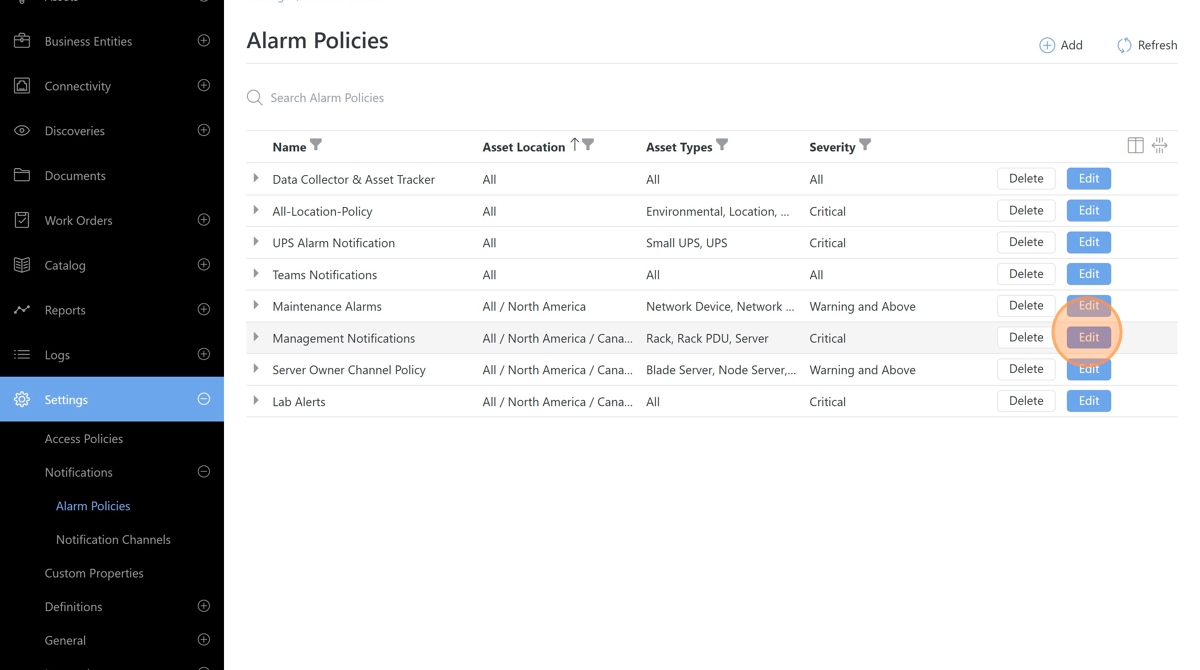
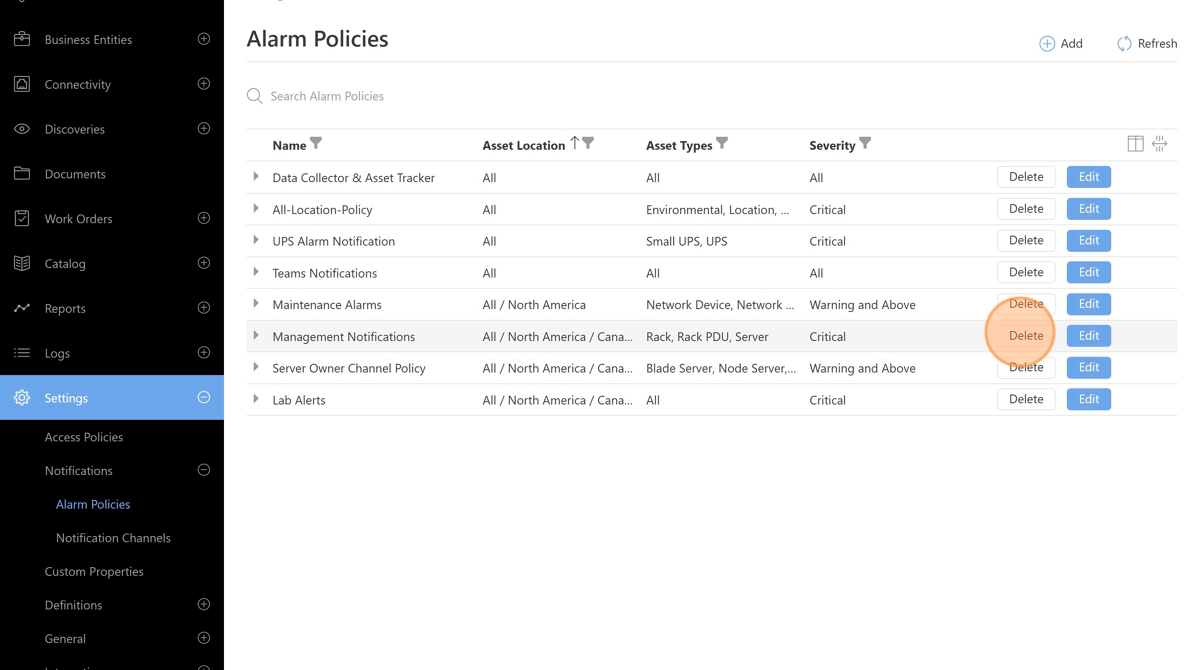
Navigate to the Alarm Policies page from the Settings -> Notifications menu. The Alarm Policy page displays a list of existing alarm policies, including Name, Asset Location, Asset Types, Severity, Categories, Users, Groups, and Channels.
Create a new Alarm Policy by clicking the Add button.
Enter a Name for the alarm policy.
Select a Location from the location picker.
Note
The policy will apply to the selected location and any descendants.
Toggle on/off the All Asset Types filter.
Select multiple asset types from the picker as needed.
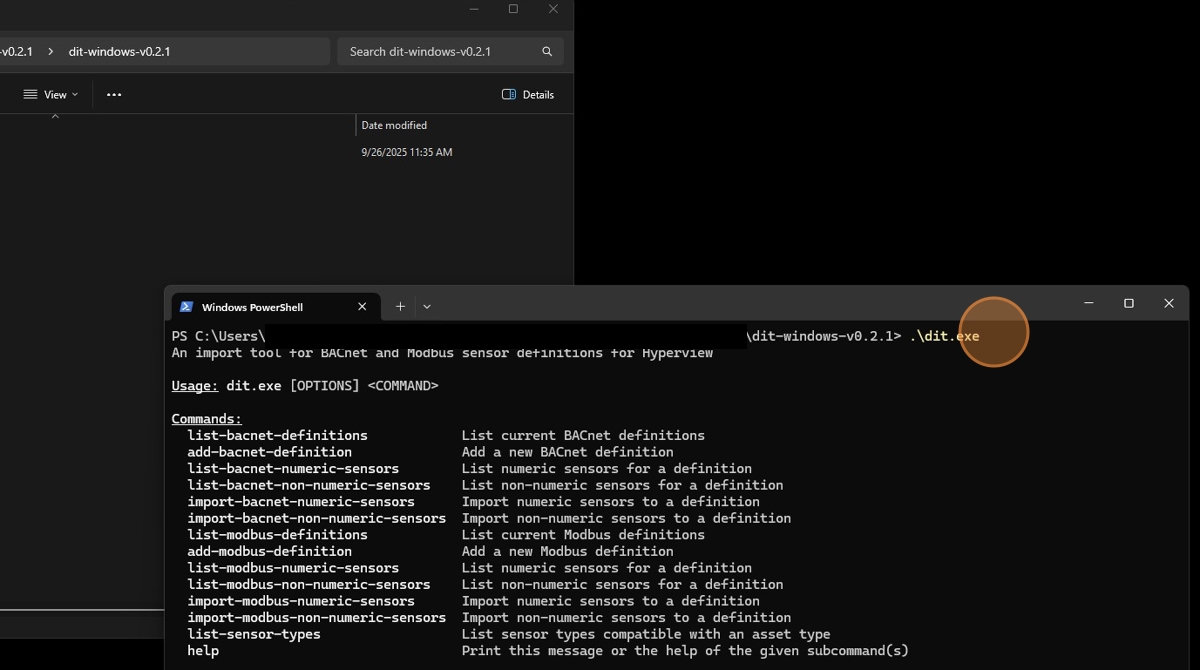
Select a Severity.
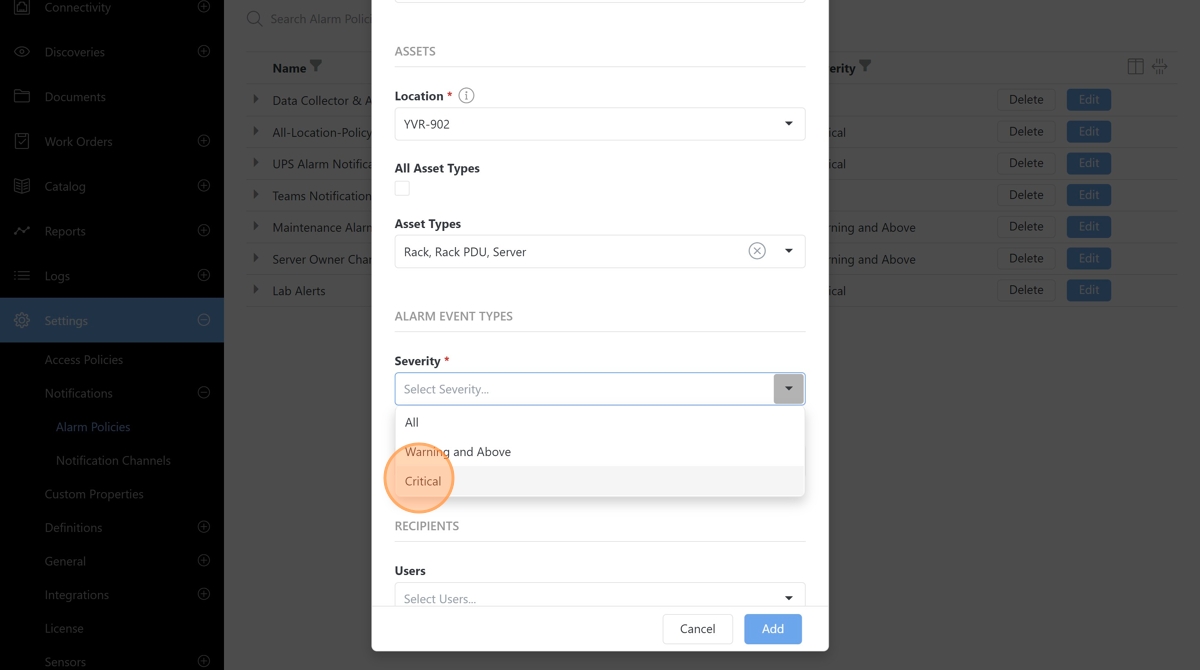
Select applicable alarm categories.
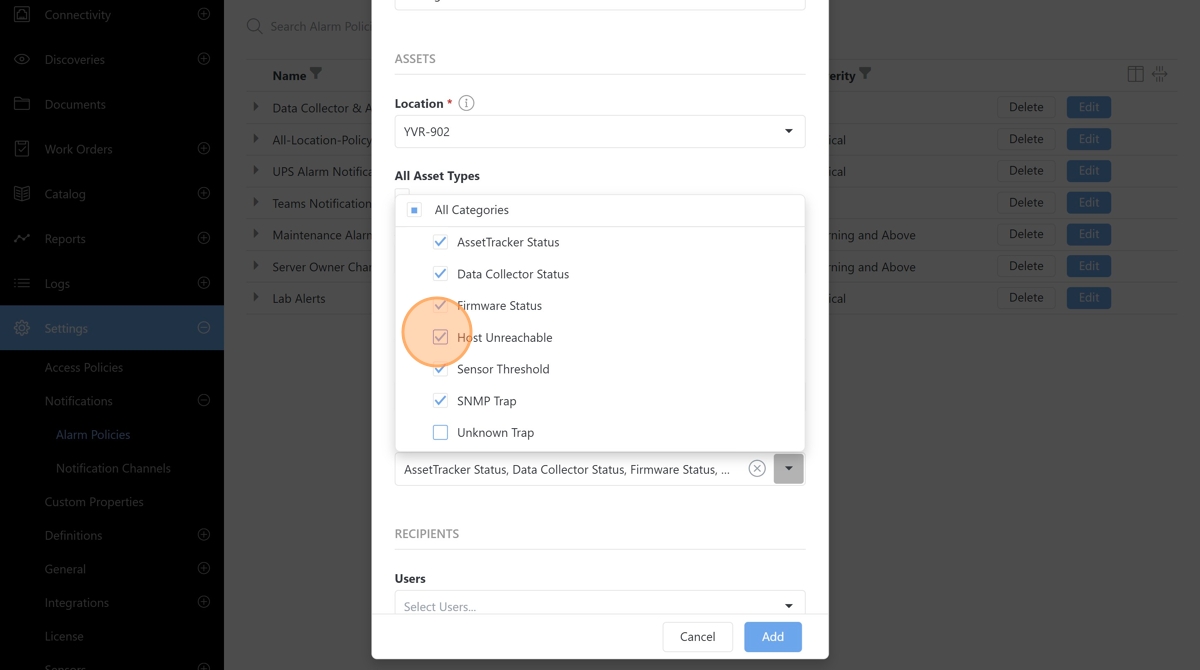
If “Sensor Threshold” alarm events are selected, you can further filter the list to specific thresholds that apply to this policy.
Add the users who should receive the alarm notifications.
Important
Non-administrator users will receive alarm events only for the assets they have access to. This may result in a user not receiving notifications for assets whose access policy prevents the user from accessing them. Please ensure that you design your alarm policies with that in mind.
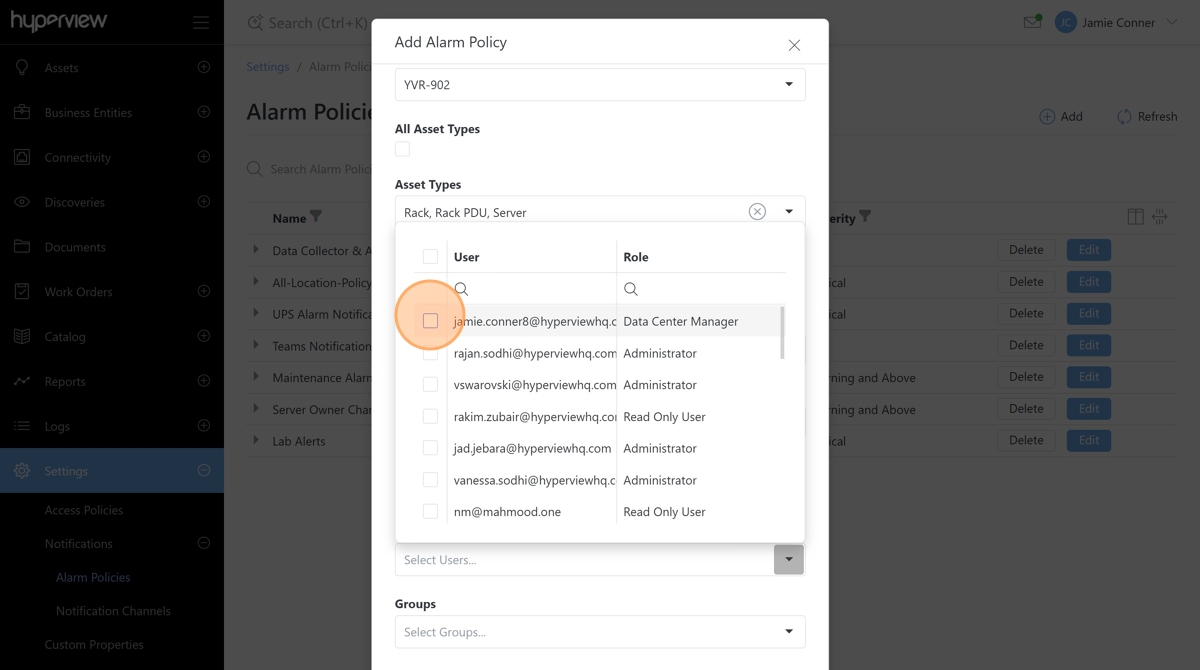
Select the groups who should receive the alarm notifications.
Important
Non-administrator users will receive alarm events only for the assets they have access to. This may result in a user not receiving notifications for assets whose access policy prevents the user from accessing them. Please ensure that you design your alarm policies with that in mind.
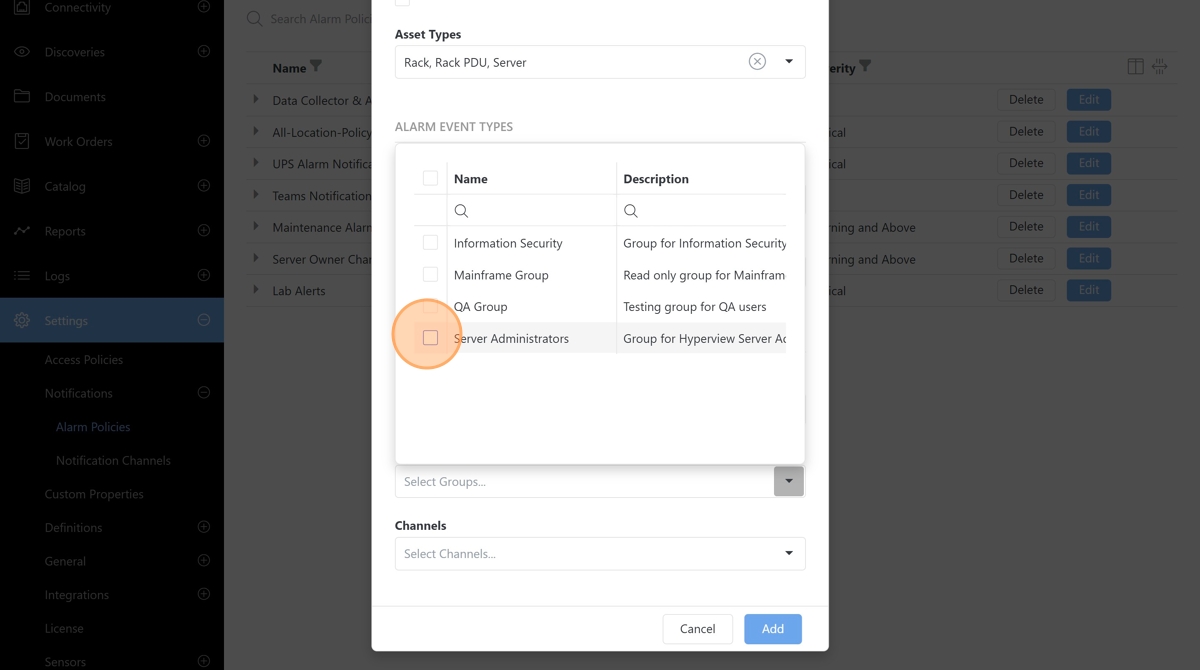
Select the channels that should receive the alarm notifications.
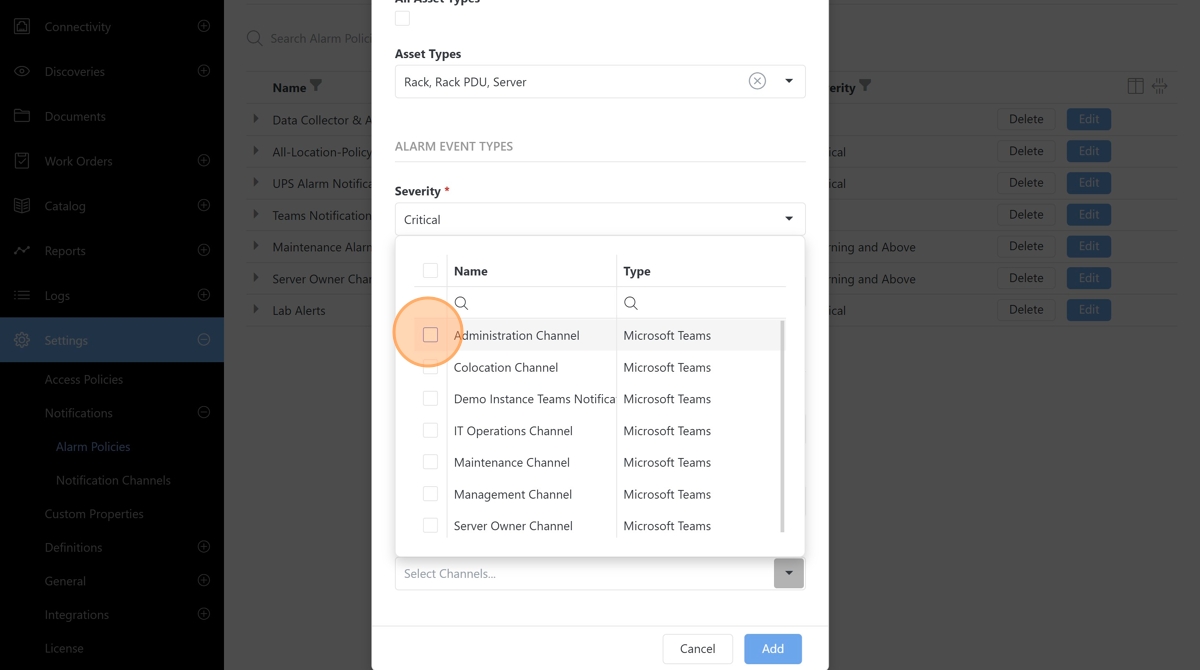
Click the Add button when done configuring the notification policy.
Any existing alarm policy can be configured by clicking the Edit button.
To remove an existing alarm policy, click the Delete button.
Muting notifications
Asset notifications can be muted without impacting a notification policy. For example, if an asset or set of assets is undergoing maintenance. Individual assets can be muted using the Actions -> Mute Notifications menu. Multiple assets can be muted using a Mute Notifications Bulk Action from any asset list grid. e.g., Advanced Search.