Managing definitions with hvcli
The Hyperview CLI (hvcli) lets you create and maintain BACnet/IP and Modbus TCP definitions from the command line. The Hyperview interface is convenient for managing a few sensors. In larger sites with hundreds or thousands of sensors, hvcli makes it easier to manage the sensor definitions in bulk using CSV files.
Note
hvcli replaces the Definition Import Tool, which is deprecated. hvcli also provides commands for managing assets, alarms, and sensors. For a full list of commands, refer to the hvcli repository.
Warning
hvcli can modify data in Hyperview. Test bulk changes on a small sample, or on a new definition, before applying them to definitions that are assigned to assets.
Downloading hvcli
Go to the hvcli releases page.
Under Assets, download the Linux or Windows ZIP file for your operating system. Pre-built binaries are only provided for these two operating systems. On macOS or other systems, build hvcli from source by following the “Building from source” section of the hvcli README.
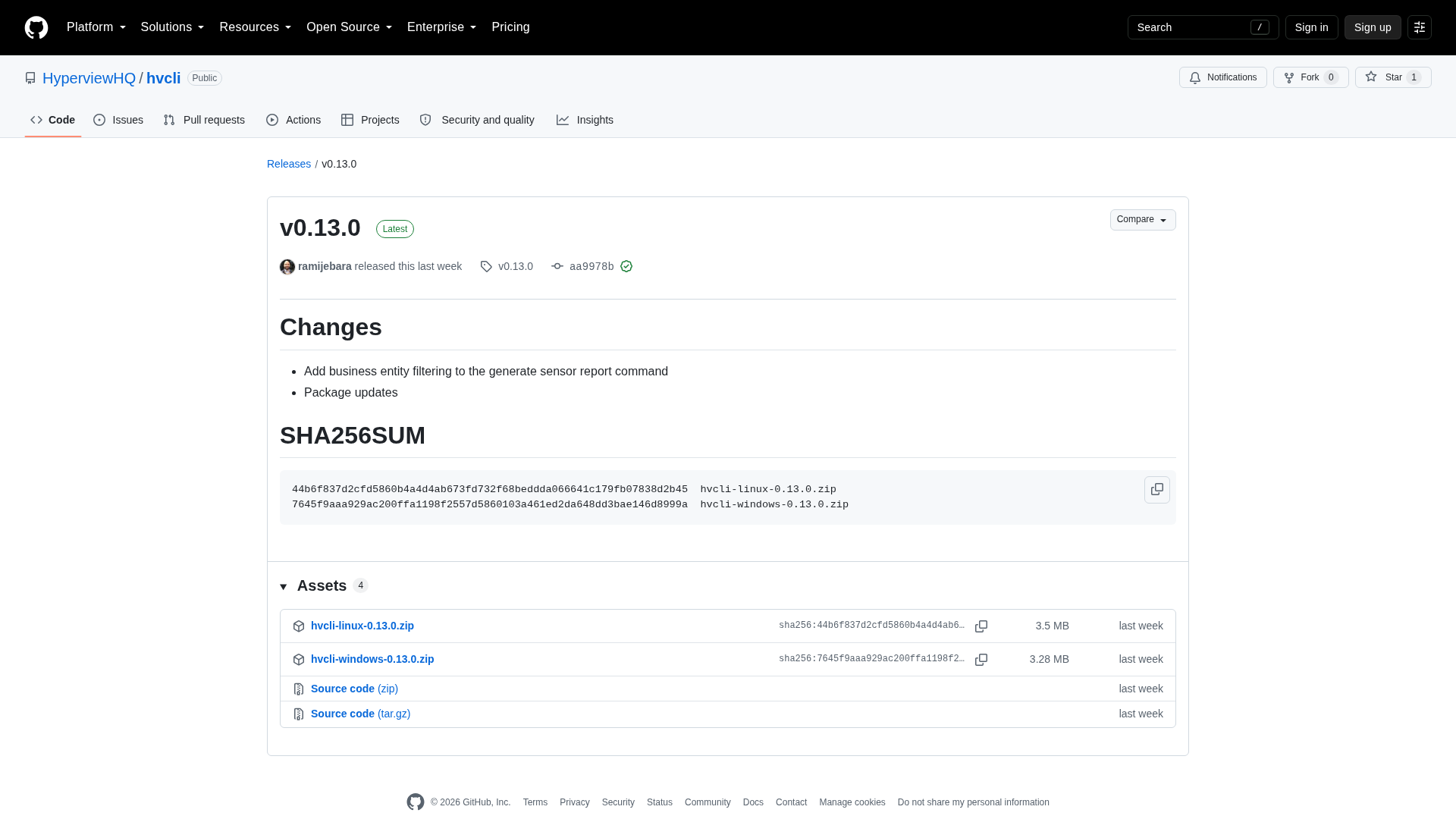
Extract the ZIP file. It contains a single executable:
hvclion Linux orhvcli.exeon Windows.On Linux, make the file executable:
chmod +x hvcli
Tip
New hvcli versions are released often, and Hyperview upgrades may require the latest version. Check the releases page for updates regularly.
Configuring hvcli
hvcli uses an API client to communicate with your Hyperview instance.
Create an API client, and download its credentials. See the Managing API Clients documentation for more information.
Important
The API client’s role and access policies determine what hvcli can do. Assign a role that can manage definitions, such as Administrator.
In your user home directory, create a directory named
.hyperview. Your home directory is typicallyC:\Users\UserNameon Microsoft Windows and/home/UserNameon Linux.In the
.hyperviewdirectory, create a file namedhyperview.tomlwith the following content:client_id = '<Client ID>' client_secret = '<Client Secret>' scope = 'HyperviewManagerApi' auth_url = 'https://instanceName.hyperviewhq.com/connect/authorize' token_url = 'https://instanceName.hyperviewhq.com/connect/token' instance_url = 'https://instanceName.hyperviewhq.com'
Replace
<Client ID>and<Client Secret>with the values from the API client’sclient_credential.jsonfile, and replaceinstanceName.hyperviewhq.comwith the address of your Hyperview instance.Verify the configuration by listing the BACnet/IP definitions. If hvcli connects successfully, it lists any existing definitions without an error.
hvcli list-bacnet-definitions
Caution
The hyperview.toml file contains the API client’s credentials. Treat it as you would a password, and restrict access to it.
Definition commands
Run hvcli --help for a list of all commands. Run hvcli <command> --help for the options of a specific command.
Task |
BACnet/IP command |
Modbus TCP command |
|---|---|---|
List definitions |
|
|
Show a definition |
|
|
Add a definition |
|
|
Update a definition’s name, asset type, and description |
|
|
Delete a definition |
|
|
List numeric sensors |
|
|
List non-numeric sensors |
|
|
Import numeric sensors from CSV |
|
|
Import non-numeric sensors from CSV |
|
|
Delete a numeric sensor |
|
|
Delete a non-numeric sensor |
|
|
List, add, rename, or delete components |
Not applicable |
|
List sensor types for an asset type |
|
|
The update commands replace all three values. --name and --asset-type are required, and if you omit --description, the existing description is cleared.
The list and get commands support the --output-type option with the values record (default), json, and csv-file. Use --output-type csv-file --filename <file> to save the output as a CSV file.
Tip
Use the long option name --definition-id for the definition ID. The short form of this option varies between commands.
Importing sensors into a BACnet/IP definition
Add a definition, providing a name and an asset type. hvcli prints the ID of the new definition, which you need for the next steps.
$ hvcli add-bacnet-definition --name "Example CRAH" --asset-type crah --description "Imported with hvcli"
01a0cb6d-bb0a-70f8-b20c-7f89eb9cdd30
To use an existing definition instead, run
hvcli list-bacnet-definitionsto find its ID.Export the sensor types and units that are valid for the definition’s asset type. Use
--sensor-class numeric(default) for numeric sensors and--sensor-class enumfor non-numeric sensors.hvcli list-sensor-definition-types --asset-type crah --output-type csv-file --filename crah_numeric_types.csv hvcli list-sensor-definition-types --asset-type crah --sensor-class enum --output-type csv-file --filename crah_enum_types.csv
Each row in the output contains a sensor type ID and name and, for numeric sensor types, a unit ID and name. Use these values to fill in the
sensor_type,sensor_type_id,unit, andunit_idcolumns of your import file.Create a CSV file of numeric sensors, and a CSV file of non-numeric sensors. Leave the
idcolumn blank for new sensors. See CSV file formats for the columns.Example numeric sensors file:
id,name,multiplier,offset,order_of_operations,object_instance,object_type,sensor_type,sensor_type_id,unit,unit_id
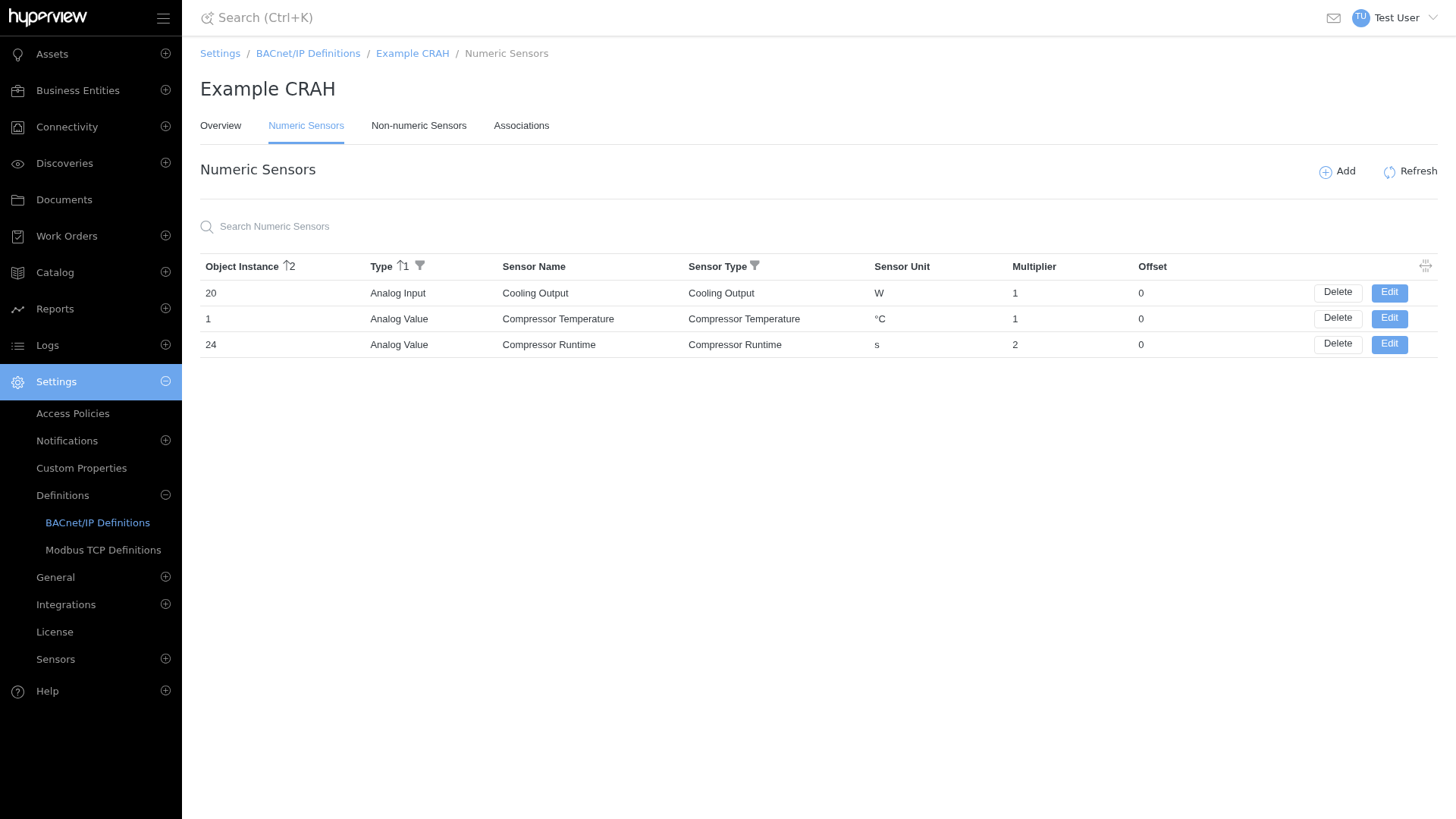
,Cooling Output,1.0,0.0,scaleThenOffset,20,analogInput,coolingOutput,0822ef0a-d0de-4789-9f44-51833c48e7a0,Watts,16b7b95b-c188-456b-ba53-08c028988cd3
,Compressor Temperature,1.0,0.0,scaleThenOffset,1,analogValue,compressorTemperature,47ab8d0c-b9f0-49b6-b7f6-84713fd18093,Celsius,d53e036e-a428-4c1a-b779-8322b96dfe16
,Compressor Runtime,2.0,0.0,scaleThenOffset,24,analogValue,compressorRuntime,ec5459cf-4ebc-42d8-bd5c-014cc263b0e1,Seconds,b09bf840-ae5f-4086-8bbc-a480c0d0c4ab
Example non-numeric sensors file:
id,name,object_instance,object_type,sensor_type,sensor_type_id,value_mapping
,Clogged filter 1,0,analogInput,cloggedFilter,f4531ff2-ebf8-49d2-bd4f-4d64c39e4283,"Inactive:0,Active:1"
,Compressor Active 1,1,analogValue,compressorActive,dd3aff52-a4bc-482a-b625-bffc63aa9d54,"Inactive:0,Active:1,Error:2"
Import the files into the definition. hvcli prints no output when every row is imported successfully.
hvcli bulk-import-bacnet-numeric-sensor-definitions --definition-id 01a0cb6d-bb0a-70f8-b20c-7f89eb9cdd30 --filename bacnet_numeric.csv
hvcli bulk-import-bacnet-non-numeric-sensor-definitions --definition-id 01a0cb6d-bb0a-70f8-b20c-7f89eb9cdd30 --filename bacnet_non_numeric.csv
Verify the result from the command line, or in Hyperview under Settings → Definitions → BACnet/IP Definitions.
hvcli list-bacnet-numeric-sensor-definitions --definition-id 01a0cb6d-bb0a-70f8-b20c-7f89eb9cdd30
Importing sensors into a Modbus TCP definition
The steps are the same as for BACnet/IP definitions, using the Modbus commands. Modbus TCP definitions can also use components. See Managing Modbus TCP definitions for more information about components.
Add a definition, and note the definition ID that hvcli prints.
$ hvcli add-modbus-definition --name "Example CRAC" --asset-type crac
01a0cb6e-956a-78e4-9fc1-21a998b298b8
Optionally, add a component for each Modbus device (slave) address of the asset, and note the component ID that hvcli prints.
$ hvcli add-modbus-component --definition-id 01a0cb6e-956a-78e4-9fc1-21a998b298b8 --name "Compressor 1"
d23da2ac-e544-475c-993a-60463bfa9a03
Run
hvcli list-modbus-components --definition-id <definition ID>to list the components of a definition, including the number of sensors assigned to each.Create the CSV files. Leave the
idcolumn blank for new sensors. To assign a sensor to a component, enter the component ID in thecomponent_idcolumn; otherwise, leave it blank.Example numeric sensors file:
id,component_id,name,multiplier,offset,order_of_operations,address,register_type,data_setting,sensor_type,sensor_type_id,unit,unit_id
,d23da2ac-e544-475c-993a-60463bfa9a03,Compressor Runtime,1.0,0.0,scaleThenOffset,1,inputRegister,uInteger16,compressorRuntime,ec5459cf-4ebc-42d8-bd5c-014cc263b0e1,Seconds,b09bf840-ae5f-4086-8bbc-a480c0d0c4ab
,d23da2ac-e544-475c-993a-60463bfa9a03,Compressor Temperature,0.1,0.0,scaleThenOffset,2,inputRegister,integer16,compressorTemperature,47ab8d0c-b9f0-49b6-b7f6-84713fd18093,Celsius,d53e036e-a428-4c1a-b779-8322b96dfe16
,,Fan Speed,1.0,0.0,scaleThenOffset,8,holdingRegister,uInteger32BigEndian,fanSpeed,416799ea-0e25-e211-8183-001c42e521d8,%,95d6a851-86b3-4208-a033-778afb65a700
Example non-numeric sensors file:
id,component_id,name,address,data_type,register_type,start_bit,end_bit,sensor_type,sensor_type_id,value_mapping
,d23da2ac-e544-475c-993a-60463bfa9a03,Clogged filter 1,9,uInteger16,holdingRegister,1,16,cloggedFilter,f4531ff2-ebf8-49d2-bd4f-4d64c39e4283,"Inactive:0,Active:1"
Import the files into the definition.
hvcli bulk-import-modbus-numeric-sensor-definitions --definition-id 01a0cb6e-956a-78e4-9fc1-21a998b298b8 --filename modbus_numeric.csv
hvcli bulk-import-modbus-non-numeric-sensor-definitions --definition-id 01a0cb6e-956a-78e4-9fc1-21a998b298b8 --filename modbus_non_numeric.csv
Verify the result with
hvcli list-modbus-numeric-sensor-definitionsandhvcli list-modbus-non-numeric-sensor-definitions, or in Hyperview under Settings → Definitions → Modbus TCP Definitions.
Updating sensors in bulk
The import commands create rows that have a blank id and update rows that contain the ID of an existing sensor in the definition. To update existing sensors:
Export the current sensors to a CSV file. The file includes the ID of each sensor.
hvcli list-bacnet-numeric-sensor-definitions --definition-id 01a0cb6d-bb0a-70f8-b20c-7f89eb9cdd30 --output-type csv-file --filename bacnet_numeric_export.csv
Edit the values in the CSV file. Do not change the
idcolumn. To add new sensors in the same import, add rows with a blankid.Import the edited file into the same definition.
hvcli bulk-import-bacnet-numeric-sensor-definitions --definition-id 01a0cb6d-bb0a-70f8-b20c-7f89eb9cdd30 --filename bacnet_numeric_export.csv
The same process applies to non-numeric sensors and to Modbus TCP definitions. Exported Modbus files include an additional component_name column for reference; it is ignored on import.
Note
Importing a file does not delete sensors that are missing from the file. To delete a sensor, use the matching delete command, for example hvcli delete-bacnet-numeric-sensor-definition --definition-id <definition ID> --sensor-id <sensor ID>.
Copying sensors to another definition
To copy the sensors of one definition to another, export them to a CSV file and import the file into the target definition with the --create-as-new option. This option ignores the id column and creates every row as a new sensor.
hvcli list-bacnet-numeric-sensor-definitions --definition-id <source definition ID> --output-type csv-file --filename source_numeric.csv
hvcli bulk-import-bacnet-numeric-sensor-definitions --definition-id <target definition ID> --filename source_numeric.csv --create-as-new
For Modbus TCP definitions, components belong to a single definition. Before importing into another definition, add the components to the target definition, and replace the component_id values in the file with the new component IDs, or clear them.
Important
Without --create-as-new, hvcli treats rows that have an id as updates. Because those sensors do not exist in the target definition, the rows fail with a 404 Not Found error.
CSV file formats
The first row of each file must contain the column names. Enclose values that contain commas, such as value mappings, in double quotes. The offset and order_of_operations columns, and the Modbus component_id column, are optional; leave them blank to use the Hyperview default.
Common columns
Column |
Description |
|---|---|
|
Blank to create a sensor. The ID of an existing sensor in the definition to update it. |
|
Sensor name. |
|
Sensor type name and ID, from |
|
Numeric sensors only. Unit name and ID, from |
|
Numeric sensors only. Applied to the raw value. |
|
Numeric sensors only. |
|
Non-numeric sensors only. Comma-separated |
BACnet/IP columns
Column |
Description |
|---|---|
|
BACnet object instance number. |
|
BACnet object type, for example |
Modbus TCP columns
Column |
Description |
|---|---|
|
ID of the component the sensor belongs to, from |
|
Register address. See “Modbus Register Addresses” in Managing Modbus TCP definitions. |
|
|
|
|
|
Non-numeric sensors only. Range of bits that holds the value, for example |
Troubleshooting
The import commands process every row, log an error for each row that fails, and then report the number of failed rows. Rows that succeeded are not rolled back. Correct the failed rows and import them again.
404 Not Foundon import: theidof the row does not exist in the definition. Clear theidcolumn to create the sensor, or use--create-as-new.400 Bad Requeston import: a value in the row is not valid, for example an unknown register type or a sensor type that does not apply to the definition’s asset type.For more detail, add the
--debug-leveloption before the command name, for examplehvcli --debug-level debug list-bacnet-definitions. Accepted values areerror(default),warn,info,debug, andtrace.